What Is Meesho Label Crop?
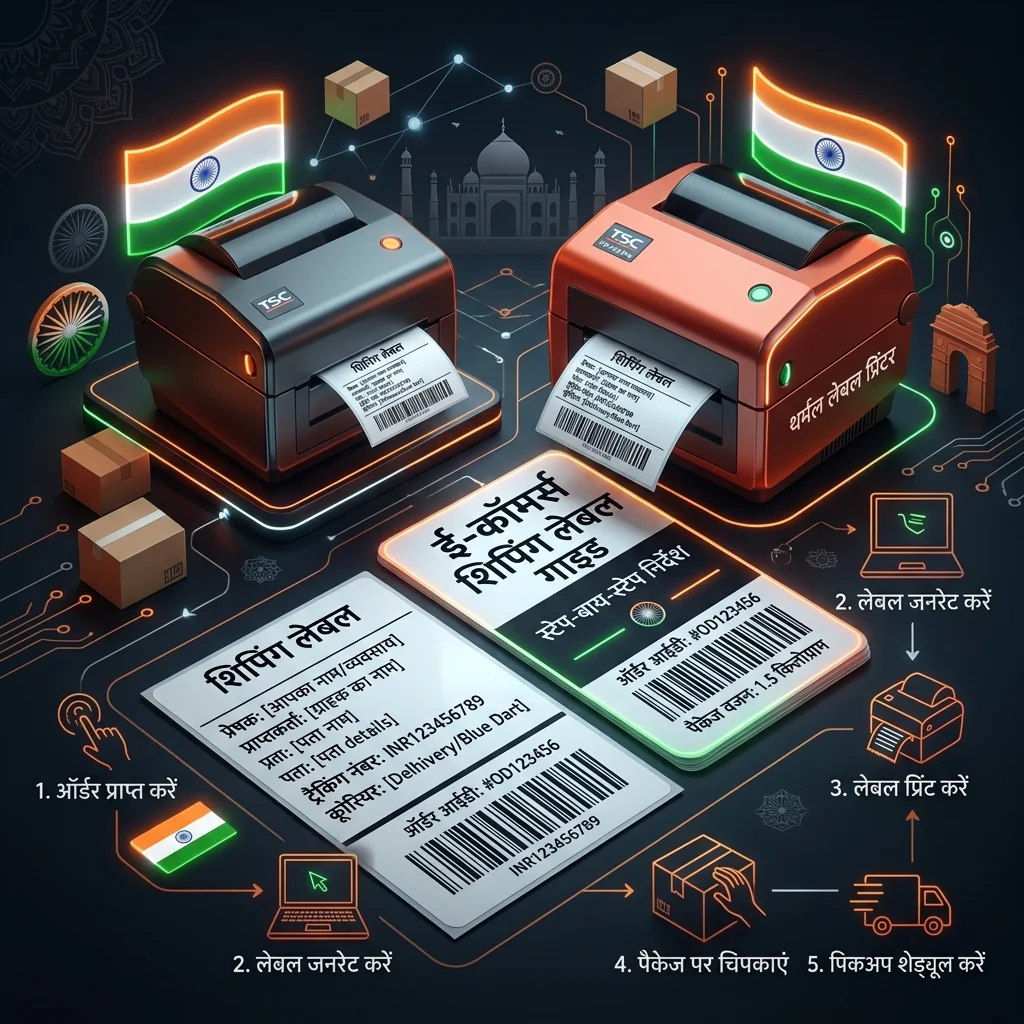
Meesho label crop is the process of extracting shipping labels from the PDF files downloaded from the Meesho Supplier Panel and converting them into print-ready documents. When Meesho generates a shipping label PDF, the file typically includes both the shipping label (with the barcode, customer address, and order details) and a tax invoice on the same A4-sized page. The labels are not formatted for direct printing on thermal printers, sticker sheets, or even clean A4 printing.
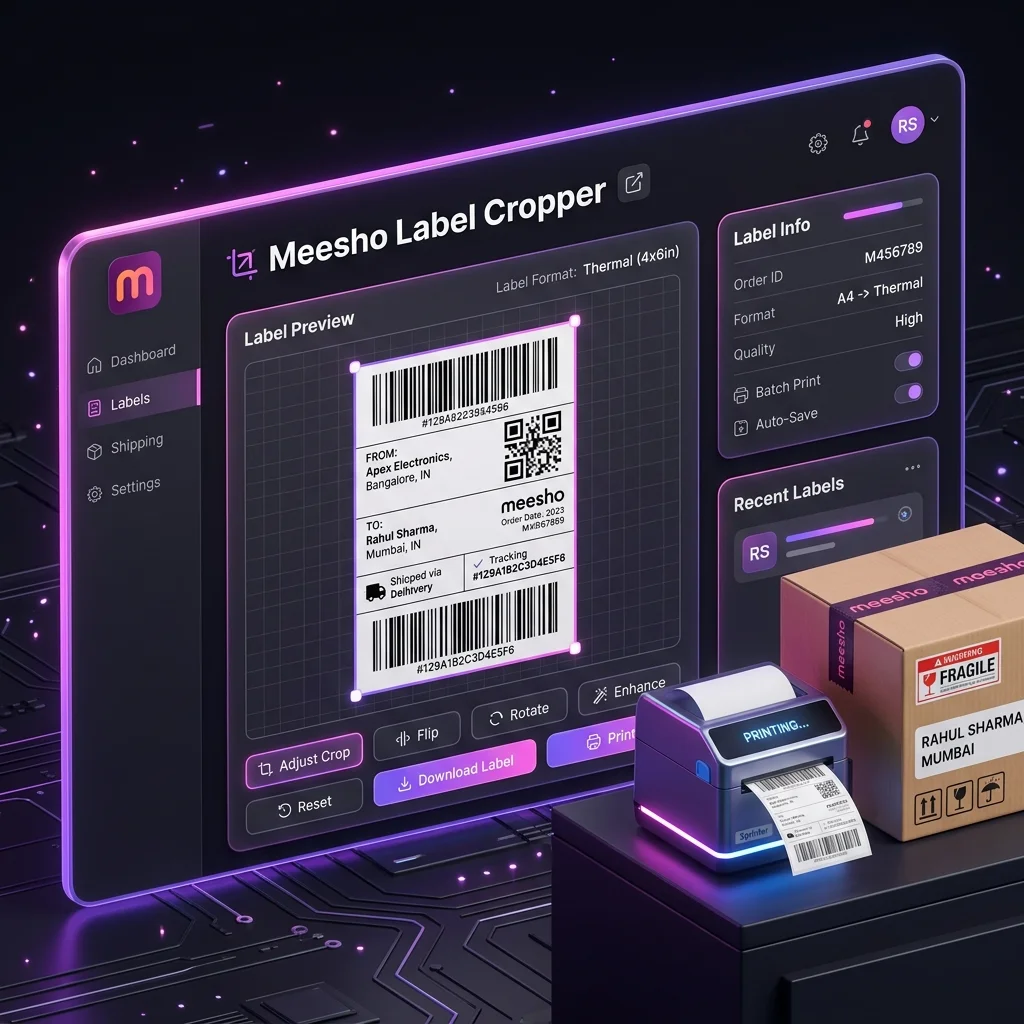
A Meesho label cropper tool automates this extraction. Instead of manually cutting, screenshotting, or using complex PDF editors, a dedicated crop tool reads the Meesho PDF structure, identifies each label boundary, separates it from the invoice, and resizes it to the correct dimensions — all within seconds. The best Meesho label crop tools also add sorting, merging, and customization features that transform the cropping step into a complete dispatch preparation workflow.
If you process more than 10 orders per day on Meesho, a proper label crop tool is not optional — it is the single most impactful efficiency upgrade you can make to your packing table operations.
Why Every Meesho Seller Needs a Dedicated Label Cropper
Sellers who skip the label cropping step face a cascading set of problems that directly impact their bottom line:
1. Unscannable Barcodes → RTOs
When you print a full A4 Meesho label PDF on a 4x6 thermal printer, the printer shrinks the entire page to fit. The barcode, originally designed for A4 dimensions, gets compressed to a size that logistics scanners cannot read. The result? Your package is rejected at the first sorting hub, triggering a Return to Origin (RTO). You lose the forward shipping cost, the packaging material, and the time spent packing — with zero revenue in return.
A calculator simulation is not evidence of real courier rejection rates. Check a sample barcode using your printer and normal scanning workflow before printing a batch; do not assume a universal failure-rate multiplier.
2. Wasted Time on Manual Cropping
Some sellers try to crop Meesho labels manually — using screenshot tools, Photoshop, Canva, or even MS Paint. For 10 orders, this takes 15-20 minutes. For 100 orders, it takes over 2 hours of tedious, repetitive work every single morning. An automated Meesho label crop free tool reduces this to under 60 seconds regardless of order volume.
3. Packing Errors From Unsorted Labels
Without SKU sorting, your printed labels come in random order. The packing team picks a label, walks to the inventory shelf to find that product, walks back, packs it, picks the next label — for a completely different product from a different shelf. This random-access packing workflow is the #1 reason for wrong-item dispatches and slow packing speed. A Meesho label cropper with SKU sorting eliminates this entirely.
4. Courier Handover Confusion
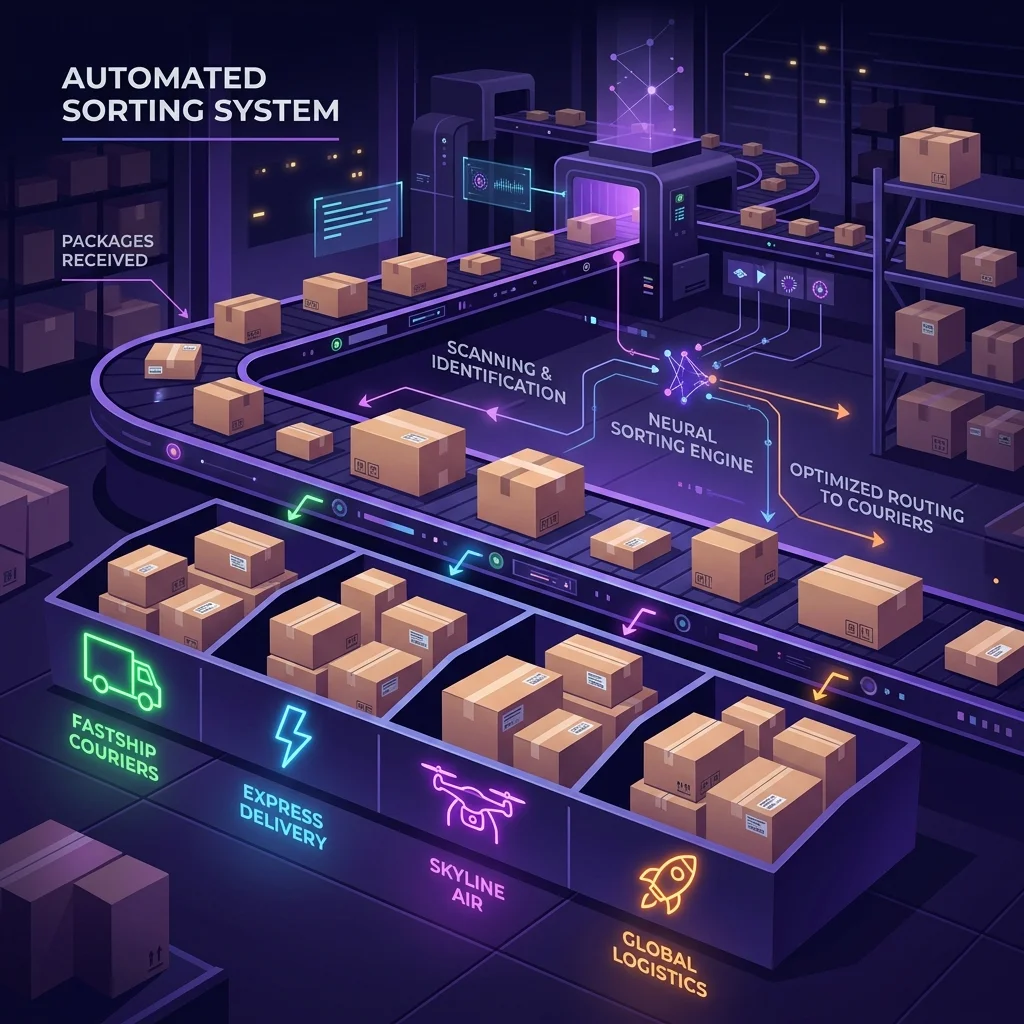
Meesho assigns different courier partners (Delhivery, Valmo, Ecom Express, Xpressbees, Shadowfax, DTDC) to different orders. Without courier sorting, you hand over a mixed pile to the pickup executive, who must manually separate packages for their company. This causes delays, mismatches, and occasional lost packages.
5. Paper Waste
Printing one Meesho label per A4 sheet wastes 75% of the paper on every page. Over a month with 100 daily orders, that is approximately 2,250 wasted A4 sheets. At ₹1.5 per sheet, that is ₹3,375/month in unnecessary printing costs. Proper Meesho label crop with 4-up A4 layout or thermal printing eliminates this entirely.
Meesho label cropping is not just a convenience feature — it directly impacts your RTO rate, packing speed, dispatch accuracy, paper costs, and courier relationships. It is the first thing you should optimize in your daily dispatch workflow.
How Meesho Shipping Labels Work — Understanding the PDF Structure
Before you start cropping, it helps to understand exactly what Meesho gives you when you click "Download Labels" in the Supplier Panel.
The Meesho Label PDF Format
When you select orders under "Ready to Ship" and download labels, Meesho generates a single PDF file. Each page in this PDF typically contains:
- Top half (~60% of the page): The shipping label — containing the AWB barcode, customer delivery address, seller pickup address, order ID, sub-order ID, courier partner name, package weight/dimensions, and a QR code.
- Bottom half (~40% of the page): The tax invoice — containing the product name, SKU, HSN code, quantity, unit price, GST breakdown, and total amount.
The entire page is formatted for A4 paper (210mm × 297mm). When this is sent to a 4x6 thermal printer (100mm × 150mm), the printer has no choice but to shrink everything by roughly 50%, making barcodes unreliable.
What "Crop" Actually Does
When a Meesho label crop tool processes this PDF, it performs these operations on each page:
- Boundary detection: Identifies where the shipping label ends and the invoice begins by reading the PDF's internal layout coordinates.
- Extraction: Creates a new page containing only the shipping label area at its original resolution — no compression, no re-rendering.
- Resizing: Fits the extracted label to exactly 4x6 inches (100 × 150mm) while maintaining barcode clarity.
- Metadata reading: Extracts the SKU code, courier partner name, order ID, and quantity from the text layer for sorting purposes.
The result is a clean, print-ready label that maintains 100% barcode scannability. For a detailed, technical explanation of PDF cropping mechanics, page coordinates, and A4 page anatomy, read our companion guide on Meesho PDF Crop & Resize Mechanics.
How to Crop Meesho Labels — Step by Step
Here is the complete workflow to crop Meesho labels using the free Seller Analytics Hub tool. The entire process takes under 2 minutes, even for 200+ orders.
Step 1: Download Labels From Meesho Supplier Panel
- Log in to supplier.meesho.com
- Go to Orders → Ready to Ship
- Select all orders you want to dispatch (use "Select All" for the entire batch)
- Click "Download Labels"
- The PDF file will download to your device. For multiple accounts, repeat this for each account.
Always download labels in PDF format, not as images. Some sellers take screenshots of individual labels — this destroys barcode quality and makes batch processing impossible. The native PDF download preserves vector-quality barcodes.
Step 2: Open the Meesho Label Crop Tool
Open selleranalyticshub.com/meesho-label-cropper in any modern browser — Chrome, Firefox, Safari, or Edge. The tool works on both desktop and mobile devices.
Step 3: Upload Your PDF Files
Drag and drop your Meesho label PDF into the highlighted upload zone. Key points:
- You can upload multiple PDFs at once — from different Meesho accounts or different download batches
- There is no file size limit and no page limit
- Files are processed entirely in your browser — nothing is uploaded to any server
Step 4: Configure Your Preferences
Before generating, choose your settings:
| Setting | What It Does | When to Enable |
|---|---|---|
| Sort by SKU | Groups identical products together in the output | Always — speeds up packing by 40-60% |
| Sort by Courier | Groups labels by pickup partner (Delhivery, Valmo, etc.) | Always — simplifies handover |
| Crop Invoice | Removes the tax invoice section, leaving only the label | Enable for thermal printers. Disable if you pack invoices inside packages. |
| Print Order Number | Prints the Meesho order ID visibly on the label | Useful for customer service lookups |
| Add Custom Text | Stamps a custom message (dispatch date, shift, note) on every label | Multi-team warehouses and shift-based operations |
| Quantity Priority | Places single-piece or multi-piece orders first | Put multi-piece first if they need special packaging attention |
Step 5: Generate and Download
Click "Generate Print-Ready PDF". The tool will:
- Parse every page in every uploaded PDF
- Crop each label to the correct dimensions
- Sort them according to your selected rules
- Merge everything into a single downloadable PDF
- Display a summary showing label count, SKU breakdown, courier breakdown, and seller account breakdown
Step 6: Print
Open the downloaded PDF and print with these settings:
- Scale: 100% (Actual Size) — never "Fit to Page"
- Margins: None (0mm)
- Paper size: 4x6 for thermal, A4 for laser/inkjet
- Resolution: 203 DPI or 300 DPI
For detailed thermal printer settings, read our dedicated guide: How to Crop Meesho Labels for Thermal Printer.
SKU Sorting: The Packing Speed Multiplier
SKU sorting is the single most impactful feature of any Meesho label crop tool, and it is the feature most beginners overlook.
How SKU Sorting Works
When SKU sorting is enabled, the tool reads the product SKU code from each Meesho shipping label's text layer. It then reorders the entire label batch so that all orders for the same SKU appear consecutively in the output PDF.
The Packing Table Impact
Without SKU sorting, a typical packing session looks like this:
- Pick up Label #1: Black Kurti M → Walk to Kurti shelf → Pack
- Pick up Label #2: Gold Earring Set → Walk to Jewelry shelf → Pack
- Pick up Label #3: Black Kurti L → Walk back to Kurti shelf → Pack
- Pick up Label #4: Red Bag → Walk to Bags shelf → Pack
- Pick up Label #5: Black Kurti M → Walk back to Kurti shelf again → Pack
With SKU sorting:
- Labels #1, #3, #5: All Black Kurtis → Pull all Kurtis at once → Pack 3 consecutively
- Label #2: Gold Earring → Pull Earrings → Pack
- Label #4: Red Bag → Pull Bags → Pack
For a 100-order batch with 15 unique SKUs, this eliminates approximately 60-80 unnecessary shelf trips, cutting packing time from 2+ hours to under 45 minutes.
Our tool also lets you choose whether single-piece orders or multi-piece orders appear first. Put multi-piece orders first if they require larger boxes or special packaging attention. This way, your team handles the complex packing first while they're fresh, and breezes through simple single-piece orders afterward.
Courier Sorting: Organized Handover to Pickup Partners
Meesho assigns orders to different logistics partners based on route optimization, servicability, and cost. Common courier partners include:
- Delhivery — Most common, wide coverage
- Valmo (Meesho's in-house logistics)
- Ecom Express
- Xpressbees
- Shadowfax
- DTDC
When courier sorting is enabled in the Meesho label crop tool, the output PDF groups all Delhivery labels together, all Valmo labels together, and so on. This creates naturally separated stacks when you print — you can physically separate the printed sheets by courier and have organized bundles ready when each pickup executive arrives.
Courier Summary for Verification
After processing, the tool displays a courier breakdown table — for example:
| Courier Partner | Order Count |
|---|---|
| Delhivery | 45 |
| Valmo | 32 |
| Ecom Express | 18 |
| Xpressbees | 8 |
When the Delhivery pickup executive arrives and says "I'm here for 45 packages", you can instantly verify the count matches. No more manual counting, no more disputes about missing parcels.
Meesho Label Crop With Invoice — Keep or Remove
The tax invoice section at the bottom of each Meesho label page is a frequent source of confusion for sellers. Should you keep it or remove it?
When to Crop (Remove) the Invoice
- You are using a 4x6 thermal printer — the invoice does not fit on a 4x6 sticker
- You print invoices separately from a different source (Tally, Zoho, or Meesho's invoice-only download)
- Your products are small items where a full A4 invoice sheet would not fit inside the package
When to Keep the Invoice
- You need to include the tax invoice inside the package for GST compliance in B2B orders
- Your workflow involves printing the full A4 page and folding it inside the shipment
- You are building GST records and want a physical copy with each dispatch
Our tool makes this a simple toggle — one click switches between crop mode and keep-invoice mode. For a detailed walkthrough, see: Meesho Label Crop With Invoice: Separate Shipping Label & Tax Invoice.
Merging Labels From Multiple Seller Accounts
Many Meesho sellers operate 2-5 seller accounts simultaneously — each selling different product categories or targeting different catalog strategies. This creates a daily problem: you end up with 3-5 separate PDF files that you need to print, sort, and pack individually.
The Meesho label merge feature in our tool solves this by accepting multiple PDF files in a single upload session. The tool treats all uploaded files as one combined batch, crops every label, applies your sorting rules across the entire merged set, and produces a single output PDF.
Why This Matters
If you have 3 accounts with 40, 60, and 30 orders respectively, you would normally handle them as 3 separate print jobs with 3 separate packing sessions. With merge, you get one 130-label PDF sorted by SKU across all accounts. If all 3 accounts sell the same Black Kurti SKU, those labels appear together — regardless of which account they came from.
The summary page also shows a per-account breakdown so you can verify each account's contribution to the batch.
Thermal Printer vs A4 Sheet — Choosing the Right Print Format
After cropping, you need to choose the output format based on your printing hardware:
| Factor | 4x6 Thermal Printer | A4 Inkjet/Laser Printer |
|---|---|---|
| Cost per label | ₹1.5 - ₹3 (sticker roll) | ₹3 - ₹6 (paper + ink/toner) |
| Speed | Very fast (~2 sec/label) | Moderate (~8 sec/page) |
| Labels per page | 1 label per sticker | 4 labels per A4 (with 2x2 layout) |
| Professional look | Excellent — waterproof, smudge-proof | Good — but ink can smear if wet |
| Initial investment | ₹4,000 - ₹15,000 | ₹3,000 - ₹8,000 |
| Best for | 50+ orders/day sellers | Beginners, 10-50 orders/day |
If you use an A4 printer, our tool supports 4-up layout (4 labels on 1 A4 sheet) to save paper. Read the detailed guide: How to Print 4 Meesho Labels on 1 A4 Sheet — Save 75% Paper.
If you use a thermal printer, follow the complete settings guide: How to Crop Meesho Labels for Thermal Printer.
Adding Dispatch Date, Shift Notes & Custom Text to Labels
For multi-team or shift-based warehouses, knowing when a label was printed and who packed it is critical for quality control and dispute resolution.
Our Meesho label crop tool lets you stamp custom text on every label in the batch:
- Dispatch date: "Dispatch: 25-May-2026" — useful for tracking SLA compliance
- Packed time: "Packed: 10:30 AM" — helps identify which shift packed the order
- Custom message: "Batch A - Morning Shift" or "Verified by Ravi"
This text appears as a small overlay on each label and does not interfere with the barcode, address, or other critical information. It is a simple but powerful accountability tool for warehouses handling 100+ orders per day.
7 Common Meesho Label Crop Mistakes to Avoid
Even with a proper label crop tool, these mistakes can cause RTOs, delays, and wasted materials:
Mistake #1: Using "Fit to Page" When Printing
This is the most common and most damaging mistake. "Fit to Page" tells your printer to shrink the label to fit the paper, compressing the barcode. Always print at 100% Actual Size.
Mistake #2: Skipping the Test Scan
After printing your first batch, always scan one barcode with your phone camera. If your phone reads it instantly, logistics scanners will too. If it struggles, your print settings need adjustment.
Mistake #3: Printing Screenshots Instead of PDFs
Screenshots are raster images at screen resolution (72-150 DPI). PDF labels are vector graphics that scale cleanly to any print resolution. Never screenshot labels — always download and crop the original PDF.
Mistake #4: Not Sorting by SKU
Printing unsorted labels means random-access packing, which is the single biggest time waster in daily dispatch. Enable SKU sorting every time.
Mistake #5: Ignoring Multi-Quantity Orders
A multi-quantity order (customer ordered 3 pieces of the same item) requires a single, slightly larger package. If you don't flag these, the packing team might ship only 1 piece. Our tool highlights multi-quantity orders with a priority setting.
Mistake #6: Using Tools That Upload to Servers
Some Meesho label crop tools upload your PDF to their cloud servers for processing. This exposes customer names, phone numbers, and addresses to third parties. Use browser-based tools that process locally.
Mistake #7: Not Checking Courier Count Against Pickup
After generating your cropped labels, check the courier summary. When the pickup executive arrives, verify their count matches yours. This prevents "missing package" disputes.
For an even deeper dive into label mistakes, read: Top 10 Meesho Label & Packaging Mistakes That Cause RTOs.
How to Crop Meesho Labels on Mobile (Android & iOS)
Many small Meesho sellers operate entirely from their smartphones. The good news: our Meesho label crop tool is fully responsive and works on mobile browsers without any app installation.
Mobile Workflow
- Open the Meesho Supplier Panel in Chrome on your phone and download the label PDF
- Navigate to selleranalyticshub.com/meesho-label-cropper
- Tap the upload zone and select the downloaded PDF from your file manager
- Configure your sorting preferences (same options as desktop)
- Tap "Generate Print-Ready PDF"
- The cropped PDF downloads to your phone — share it via WhatsApp to your warehouse team, or connect directly to a wireless thermal printer
The tool is optimized for mobile screens, so all buttons, toggles, and the summary table are fully accessible on smaller displays.
Data Security: Why Browser-Based Cropping Matters
Every Meesho shipping label PDF contains sensitive Personally Identifiable Information (PII):
- Customer full name
- Complete delivery address with PIN code
- Customer phone number
- Order amount and product details
When you upload this to a cloud-based cropping tool, that data passes through external servers. Even if the tool claims to "delete files after processing," you have no way to verify this. Data breaches, unauthorized access, and privacy violations are real risks.
Our Meesho label crop tool uses 100% client-side JavaScript processing. The PDF is parsed, rendered, cropped, sorted, and merged entirely inside your browser's memory. No data ever leaves your device. When you close the tab, everything is gone from memory. This is the safest approach to handle customer PII while staying compliant with data protection norms.
Complete Daily Dispatch Workflow With Meesho Label Crop
Here is the optimized morning dispatch workflow used by high-volume Meesho sellers (100+ orders/day):
| Time | Step | Details |
|---|---|---|
| 8:00 AM | Accept orders | Open Meesho Supplier Panel, accept all pending orders under "New Orders" |
| 8:15 AM | Download labels | Select all "Ready to Ship" orders, click Download Labels. Repeat for each seller account. |
| 8:20 AM | Crop & sort | Upload all PDFs to the Meesho label cropper. Enable SKU sorting + courier sorting. Generate merged PDF. |
| 8:22 AM | Review summary | Check the SKU count (matches your inventory?) and courier count (how many for each partner?) |
| 8:25 AM | Print labels | Print the merged PDF on thermal printer at 100% scale |
| 8:30 AM | Pull inventory | Using the SKU summary, pull products from shelves in bulk — all units of each SKU at once |
| 8:45 AM | Pack | Match labels to products sequentially. SKU sorting means you pack all of one product, then move to the next. |
| 10:00 AM | Sort by courier | Separate packed parcels by courier partner using the printed label groupings |
| 10:30 AM | Pickup handover | When pickup executive arrives, verify count matches your courier summary. Hand over organized stacks. |
This workflow, powered by proper Meesho label crop and sorting, allows a single person to process 100+ orders in under 2 hours — the same volume that takes 4-5 hours with manual label handling.
For the complete dispatch SOP, read: Meesho Order Dispatch: Complete Packing & Shipping Workflow.
✂️ Ready to Crop Your Meesho Labels?
Stop wasting time with manual PDF editing. Use our free browser-based Meesho label crop tool — crop, sort by SKU & courier, merge multiple accounts, add dispatch notes, and print. All in your browser, zero data uploaded.
Open Meesho Label Cropper →Use the workflow while the article is still fresh.
Open the matching tool and apply the exact process from this guide in the new V2 workspace.