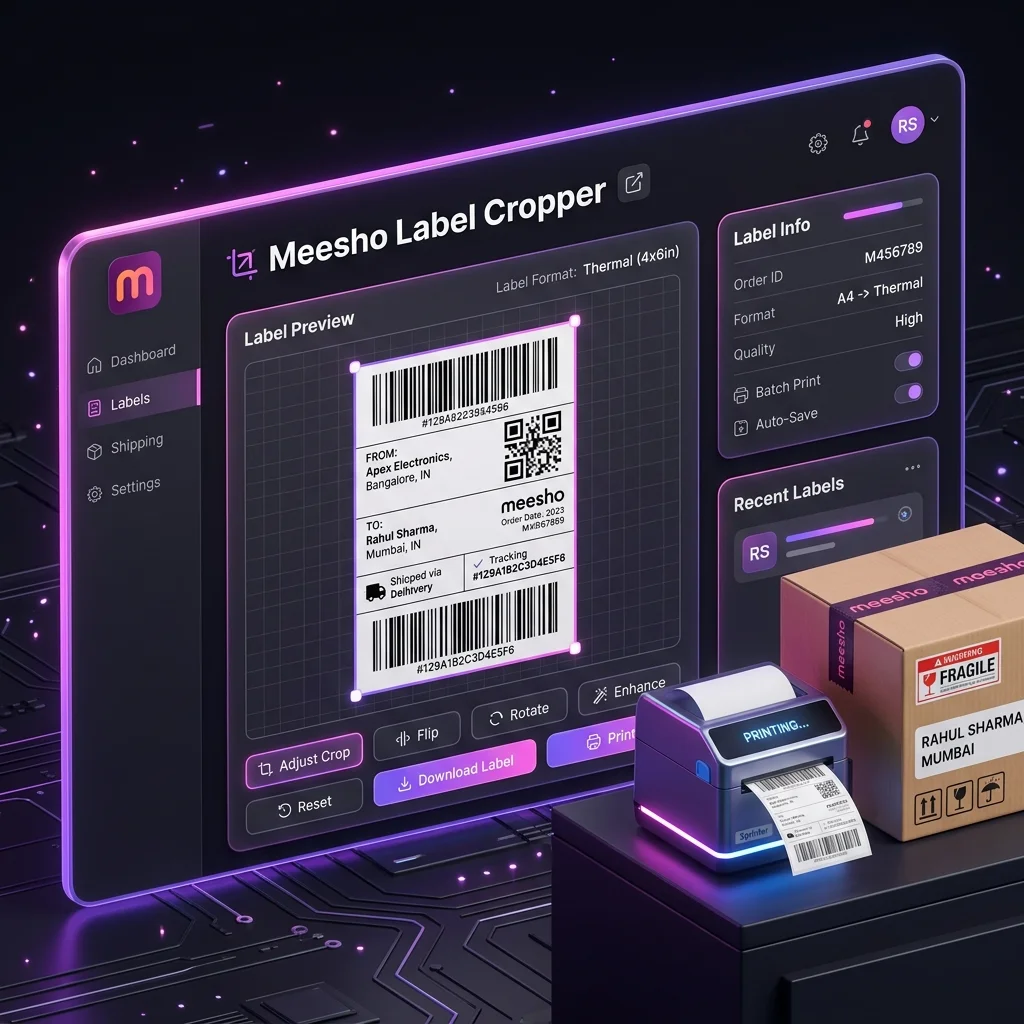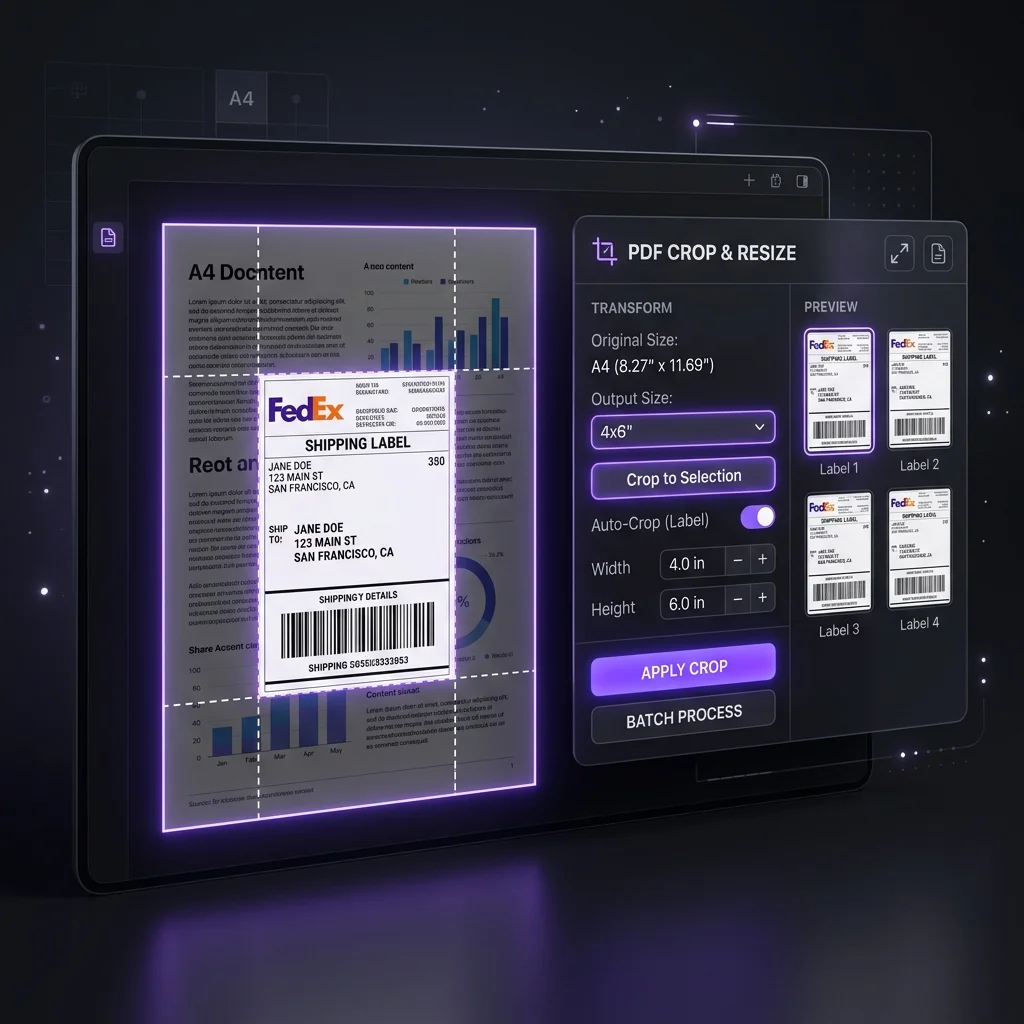
To merge Meesho labels, select the PDF files for the orders you want in one print run, process them in the Meesho Label Crop Tool, then download and inspect the combined PDF. Each source label page becomes an output page. You can crop the invoice section and change the page order, but a merged print file is still separate from your Supplier Panel order and pickup records.
This is useful when you downloaded several small batches or work across more than one seller account. The main risk is losing track of which printed label belongs to which account. A little preparation prevents that.
Prepare the source PDFs first
- Download the label PDFs from the correct Meesho Supplier Panel account and order group. Keep the originals.
- Open each file. Note its account, date range, selected orders and label count in a simple batch list.
- Give each file a distinct name, such as an account nickname and date. The web tool currently treats files with the same name and byte size as duplicates, so check that every expected file appears in its queue.
- Remove a PDF from the queue if it belongs to another day or contains orders that are not ready to pack.
If an account has different invoice or handover requirements, process its labels separately. A combined print PDF should make packing easier without replacing account-level records.
How to merge Meesho label PDFs in the browser
- Open the Meesho Label Crop Tool and choose or drop your PDFs. The batch queue shows the number of files accepted.
- Decide whether to leave Keep invoice section off for cropped label output or turn it on to retain the source page. Keep the original PDFs either way.
- Choose sorting only if it serves this packing run. Check the Quantity Priority control before processing.
- Select Crop & Generate Print-Ready PDF, compare the tool's label and seller totals with your batch list, then download the merged PDF.
- Open the PDF in your viewer. Spot-check the beginning, middle and end, including labels from each seller account.
PDF bytes and full page text are processed in your browser. After processing, the Hub records a limited usage summary that can include seller names, order IDs, SKUs, counts and selected options; read the privacy notice before using real customer labels.
Choose the sort order you actually need
Sort by SKU places matching product codes together. Sort by Courier Partner groups labels by detected courier within the chosen quantity tier. If both are on, courier is compared before SKU within that tier. Quantity priority is applied first, so one courier may appear in both single-item and multi-item parts of the output. Set Quantity Priority to No quantity sorting priority if you want the courier groups to run together across the full batch.
Unknown or hard-to-read courier and SKU text can affect grouping. Inspect the downloaded pages and match them to physical parcels; the tool does not create a separate courier-only PDF or confirm pickup.
Check the merged PDF before printing
- Does the file queue contain every source PDF? If a file is missing, resolve that before packing.
- Does the output label count match your selected source pages? Investigate a mismatch before printing.
- Are the address, barcode, order reference and invoice choice correct on sample pages from each account?
- Does your printer's paper size match the downloaded page? The crop follows the source dimensions; there is no fixed 4 × 6 export selector.
- Can you trace every printed label back to its account and order, then to a pickup scan or exception?
Print one test page, then run the full batch. For the crop itself, see the Meesho label crop guide. For picking and courier grouping, use the SKU and courier sorting guide.
Merge a small batch first
Queue two source PDFs, verify the label count and inspect the combined output before printing more.
Open Meesho Label Crop ToolTry the workflow with your own data.
Open the matching Seller Analytics Hub tool and review the result before using it for dispatch or reporting.