Why Meesho PDFs Need Cropping Before Printing
Every shipping label you download from the Meesho Supplier Panel arrives as an A4-sized PDF document. This document contains both the shipping label and the tax invoice stacked vertically on a single page. While this format is fine for record-keeping, it creates serious problems when you try to print it for dispatch.
The core issue is simple: the PDF page size does not match your printer's expected input. Thermal printers expect 4x6-inch (100×150mm) documents. A4 paper is 210×297mm — nearly 4 times the area of a thermal label. When you send an A4 PDF to a thermal printer without cropping, the printer either:
- Shrinks everything to fit → barcodes become too small to scan → RTO
- Prints only the top portion → the barcode or address gets cut off → delivery failure
- Throws a paper size error → nothing prints at all → dispatch delay
Even if you use a standard A4 printer, printing one label per full A4 page wastes 60% of the paper (the invoice area you don't need on the package) and 75% of the space (only a quarter of the sheet has the label).
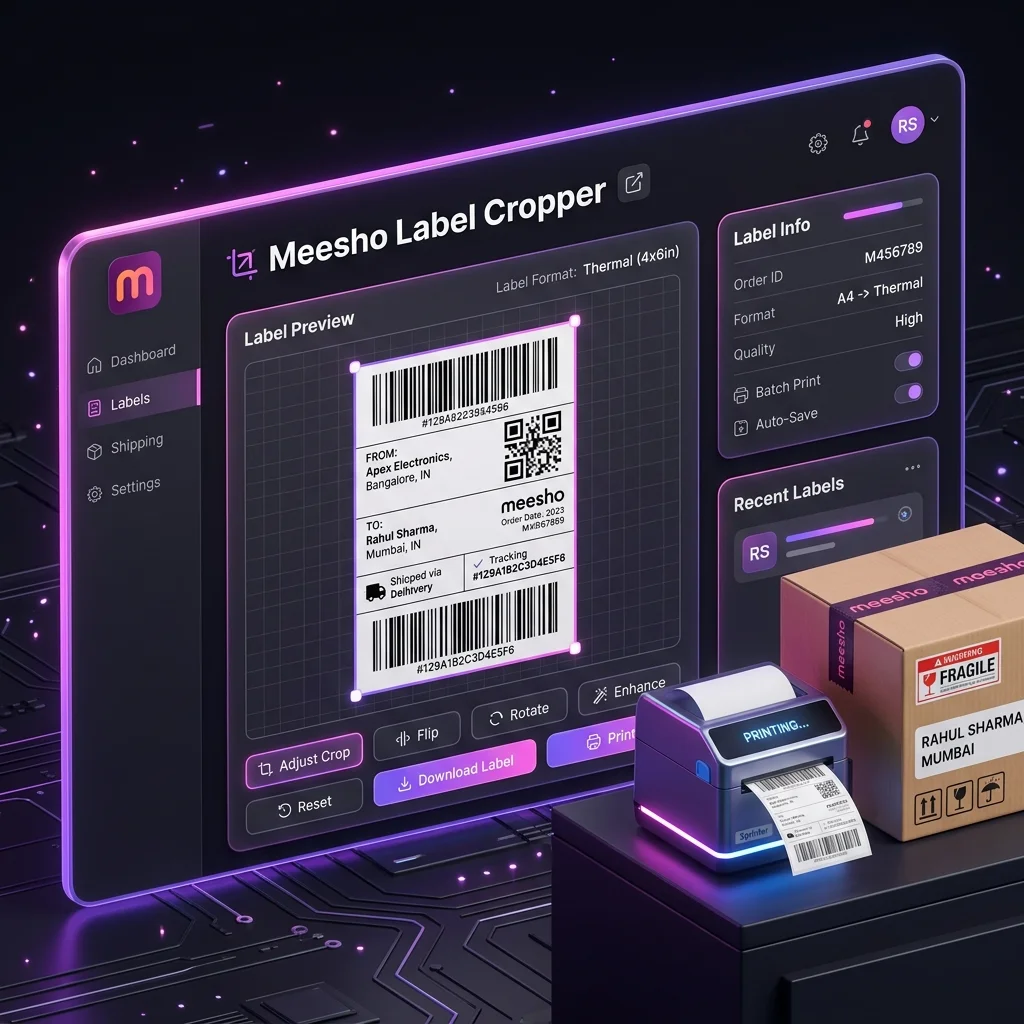
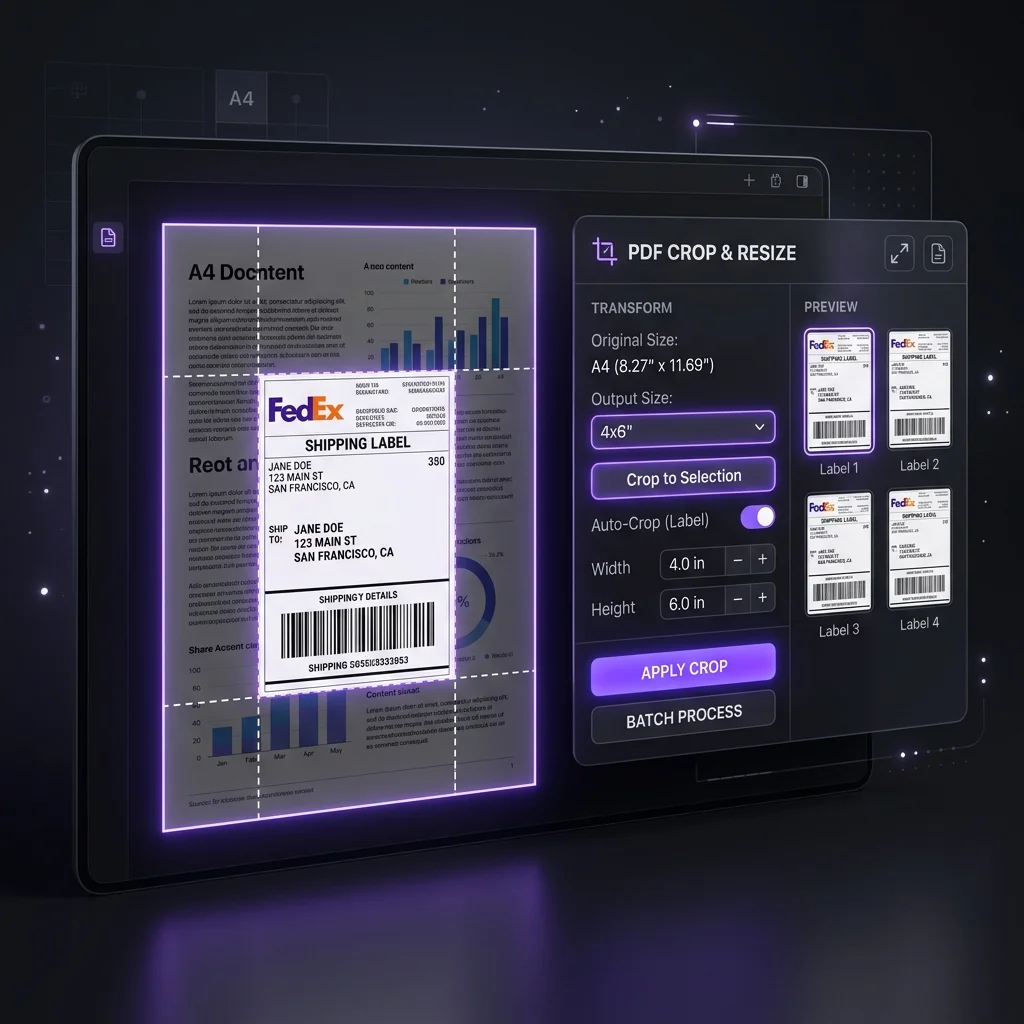
Meesho PDF crop solves all of these problems by extracting only the shipping label from each page and reformatting it to match your exact printer configuration. For a comprehensive overview of the entire shipping label workflow, including sorting rules, packing tips, and account merging, see our Meesho Label Crop: Complete Seller Guide.
Anatomy of a Meesho Shipping Label PDF
Understanding the internal structure of Meesho's PDF helps you appreciate why a simple "trim margins" approach does not work — and why a dedicated Meesho PDF cropper is necessary.
Page Layout Structure
Each page in a Meesho shipping label PDF is divided into two primary zones:
| Zone | Position | Contents | Needed for Shipping? |
|---|---|---|---|
| Shipping Label | Top ~55-65% of page | AWB barcode (Code 128), QR code, customer name & address, seller address, courier partner name, order ID, sub-order ID, product weight, delivery zone, package dimensions | ✅ Yes — this is what goes on the package |
| Tax Invoice | Bottom ~35-45% of page | Product name, SKU, HSN code, quantity, unit price, GST rate & amount (CGST/SGST/IGST), total payable, invoice number, seller GSTIN | ❌ Not for the external label. May be needed inside the package. |
Text Layer vs Visual Layer
Meesho PDFs contain embedded text data (not just images). This is crucial because a proper Meesho PDF crop tool reads this text layer to extract SKU codes, courier partner names, and order IDs — enabling sorting and summary features. Screenshot-based cropping destroys this text layer, making sorting impossible.
Barcode Specifications
The AWB barcode on Meesho labels uses Code 128 encoding at a specific module width. The barcode is designed to be scannable at its original A4 rendering size. When cropped correctly (maintaining original resolution) and printed at 100% scale on a 4x6 label, the barcode remains perfectly readable. The critical requirement is that the barcode must not be re-rendered, re-rasterized, or scaled during the crop process.
3 Methods to Crop Meesho PDFs — Compared
There are three common approaches sellers use to crop Meesho shipping label PDFs. Here's how they stack up:
| Method | Time for 100 Labels | Barcode Quality | Sorting? | Cost | Verdict |
|---|---|---|---|---|---|
| Manual (Screenshot + Paint/Canva) | 2-3 hours | ❌ Poor (72-150 DPI raster) | ❌ No | Free | Unviable above 15 orders/day |
| Desktop Software (Adobe Acrobat / PDFelement) | 30-45 minutes | ✅ Good (preserves vectors) | ❌ No built-in SKU sort | ₹1,000-15,000/year | Overkill — designed for general PDF editing, not e-commerce labels |
| Dedicated Meesho PDF Cropper (Browser-based) | 30-60 seconds | ✅ Excellent (original resolution) | ✅ SKU + Courier | Free | ✅ Best option — built specifically for this use case |
The clear winner is a dedicated, browser-based Meesho PDF crop tool. It is faster than manual methods by 100x, cheaper than desktop software (free vs paid), and offers Meesho-specific features that generic PDF editors cannot provide.
How to Crop Meesho PDFs Online — Step by Step
Follow this detailed walkthrough to crop Meesho PDFs using the free Seller Analytics Hub tool:
Pre-requisite: Download Your Label PDF
- Log in to your Meesho Supplier Panel at supplier.meesho.com
- Navigate to Orders → Ready to Ship
- Select the orders you want to dispatch (or click "Select All")
- Click "Download Labels" — a single PDF file containing all selected order labels will download
Cropping Process
- Open the tool: Visit selleranalyticshub.com/meesho-label-tool in Chrome, Firefox, Safari, or Edge
- Upload: Drag your downloaded PDF into the upload zone (or tap to browse on mobile). You can upload multiple PDFs from different seller accounts simultaneously.
- Configure settings:
- Invoice mode: "Crop invoices" (default) removes the invoice section. Toggle to "Keep invoice" if needed.
- Sort by SKU: Enable to group identical products together
- Sort by courier: Enable to group by pickup partner (Delhivery, Valmo, etc.)
- Custom text: Optionally add dispatch date, shift time, or custom notes
- Generate: Click "Generate Print-Ready PDF". Processing happens instantly in your browser.
- Review: Check the summary dashboard — total labels, SKU breakdown, courier breakdown, and seller account breakdown.
- Download: Click "Download PDF". Your cropped, sorted, merged PDF is ready for printing.
This entire process — from opening the tool to downloading the cropped PDF — takes under 60 seconds for a 100-label batch. Compare this to 2-3 hours of manual cropping. Over a month, that is approximately 60 hours saved — time you can spend on product sourcing, customer service, or catalog optimization.
Converting A4 Meesho PDFs to 4x6 Thermal Labels
The most common Meesho PDF crop use case is converting A4-sized label pages to 4x6-inch thermal stickers. Here's exactly what happens during this conversion:
Dimensional Transformation
| Property | Original (A4) | After Crop (4x6) |
|---|---|---|
| Page width | 210 mm | 100 mm (4 inches) |
| Page height | 297 mm | 150 mm (6 inches) |
| Content | Shipping label + tax invoice | Shipping label only |
| Barcode size | Original rendering | Same — no re-scaling |
| DPI at print | 72-150 DPI (on A4) | 203-300 DPI (on 4x6 thermal) |
Why Barcode Quality Improves After Cropping
Counterintuitively, cropping to a smaller page size actually improves barcode quality when printed on a thermal printer. Here's why:
When you print the full A4 page on a 4x6 printer, the printer must shrink 297mm of content into 150mm of space — a ~50% reduction. The barcode gets compressed to half its intended size, and the lines become too narrow for logistics scanners to read.
When you crop the Meesho PDF first, only the label area (which is already roughly 150mm tall) gets mapped to the 150mm label. The barcode stays at its original size — exactly as Meesho designed it to be scanned. The result is a perfectly readable barcode every time.
Fitting 4 Cropped Labels on One A4 Sheet
If you don't have a thermal printer, you can still benefit from Meesho PDF crop by printing 4 cropped labels on a single A4 sheet (2×2 grid layout).
How to Set This Up
- Crop your Meesho labels using the tool with invoice cropping enabled
- Download the cropped PDF (each page is now one 4x6 label)
- Open the PDF in Adobe Reader, Chrome PDF viewer, or Foxit
- Click Print → under "Page Sizing & Handling", select "Multiple"
- Set "Pages per sheet" to 4 (2×2)
- Ensure "Actual Size" or "100%" is selected under scale
- Set margins to None
- Print on A4 paper
This gives you 4 neatly arranged labels on each A4 sheet, which you can cut with a paper cutter and stick on packages. It saves 75% on paper usage compared to one-label-per-A4 printing.
For the full detailed walkthrough with printer screenshots, read: How to Print 4 Meesho Labels on 1 A4 Sheet — Save 75% Paper.
Batch Cropping: Processing 100+ Pages at Once
High-volume sellers (50-500 orders/day) cannot afford to crop PDFs one at a time. Batch processing is essential, and it works at two levels:
Level 1: Multi-Page PDF
Meesho's label download already generates a multi-page PDF — if you have 80 orders, you get an 80-page PDF. The Meesho PDF cropper processes all 80 pages in a single operation. Each page is individually analyzed, cropped, and added to the output.
Level 2: Multi-File Batch
If you have 3 seller accounts generating 3 separate PDF files, upload all 3 files simultaneously. The tool merges them into one processing batch — 80 + 60 + 40 = 180 labels, all cropped, sorted by SKU across all accounts, and exported as a single PDF.
Performance
Browser-based processing using modern JavaScript (pdf.js, jsPDF) can handle 200+ pages in under 10 seconds on a standard laptop or phone. There is no server queue, no upload wait, and no API rate limiting — everything runs at the speed of your device's CPU.
Preserving Barcode Quality During PDF Crop
Barcode quality preservation is the most critical technical requirement for any Meesho PDF crop operation. An unscannable barcode means the package cannot enter the logistics network, resulting in an automatic RTO.
Technical Requirements for Barcode Integrity
| Requirement | What It Means | How Our Tool Handles It |
|---|---|---|
| Vector preservation | Barcode lines must remain as vector graphics, not converted to raster images | Crops the PDF at the page-object level without re-rendering |
| No downsampling | Image elements in the label must retain original resolution | Images are extracted at native DPI without compression |
| Margin safety | 2-3mm clear margin around the barcode on all sides | Crop boundaries are set inside the page edge, never touching the barcode |
| No rotation | Barcode must maintain its original orientation | Page orientation is preserved exactly as Meesho generated it |
| Print at 100% | After cropping, the label must be printed without any scaling | Output page size matches thermal printer paper size exactly |
After printing your first cropped label, perform this 10-second test: Open your phone's camera (or any barcode scanner app) and point it at the printed AWB barcode. If the phone reads the tracking number within 1-2 seconds, the barcode is perfect. If it takes more than 3 seconds or fails to read, check your print settings — "Fit to Page" is almost always the culprit.
Meesho PDF Crop Errors & How to Fix Them
Here are the most common issues sellers encounter during Meesho PDF crop and their solutions:
Error 1: "The PDF is not a valid Meesho label file"
Cause: You uploaded a payment report CSV, an ad report, or a manifest PDF instead of the shipping label PDF.
Fix: In Meesho Supplier Panel, go to Orders → Ready to Ship → Select orders → "Download Labels" (not "Download Manifest" or "Download Invoice").
Error 2: Blank pages in the cropped output
Cause: The Meesho PDF contains separator pages or title pages between different order batches.
Fix: Most advanced croppers automatically skip non-label pages. If yours doesn't, re-download the labels selecting a smaller batch of orders.
Error 3: Labels are rotated 90° in the output
Cause: Some Meesho labels for specific courier partners are generated in landscape orientation.
Fix: Check your printer driver settings — most thermal printers have a "Auto Rotate" option. Alternatively, use a tool that normalizes all labels to portrait orientation during crop.
Error 4: Barcode is cut off at the edge
Cause: The printer is adding its own margins on top of the label content.
Fix: Set printer margins to 0mm and paper size to exactly 4x6 inches (100×150mm) in your printer preferences. Also ensure "Scale to Fit" is disabled.
Error 5: The cropped file is too large to email/WhatsApp
Cause: Large batches (200+ labels) can produce 15-30 MB PDFs.
Fix: Use the tool's built-in optimization which compresses without quality loss. Alternatively, split the batch into smaller groups (e.g., by courier partner) and process separately.
Best Practices for Meesho PDF Crop — Quick Reference
| ✅ Do | ❌ Don't |
|---|---|
| Always download labels as PDF from Meesho panel | Don't take screenshots of labels |
| Use a dedicated Meesho PDF crop tool | Don't use generic PDF editors for batch label cropping |
| Print at 100% Actual Size | Don't use "Fit to Page" or "Scale to Fit" |
| Set printer margins to 0mm | Don't leave default margins active |
| Test-scan the first barcode before printing the full batch | Don't print 100+ labels without checking the first one |
| Enable SKU sorting for packing speed | Don't print unsorted labels for batches over 20 orders |
| Use browser-based tools for data privacy | Don't upload Meesho PDFs to cloud-based tools with unknown privacy policies |
| Save the original Meesho PDF as backup | Don't delete the source file after cropping |
📄 Crop Your Meesho PDFs in Seconds
Upload your Meesho shipping label PDFs, crop invoices, sort by SKU or courier, merge multiple files, and download a single print-ready PDF — all for free, all in your browser.
Open Meesho PDF Cropper →Use the workflow while the article is still fresh.
Open the matching tool and apply the exact process from this guide in the new V2 workspace.