Looking for an Amazon label cropper? Choose a tool that names your fulfilment type and source PDF, then check its privacy terms and print one test label before processing a batch. A seller-fulfilled parcel label, a packing slip, an FBA carton label and an FBA product label serve different jobs; do not treat them as interchangeable.
For a one-off Amazon label crop, a standard PDF editor may be enough. If you need batch cropping, invoice removal, sorting or SKU text, compare a dedicated tool's listed options with the file you downloaded from Seller Central. Keep the full address and barcode intact, and use the printer size shown in the document preview.
This is a print-preparation guide, not an Amazon PDF processing tool. Our Meesho Label Crop Tool is built for Meesho PDFs; we have not verified Amazon label compatibility. Amazon label printing varies by fulfilment path, so choose the document generated for the order or FBA shipment rather than starting with a generic crop preset.
Amazon label cropper options: browser tools and Android app
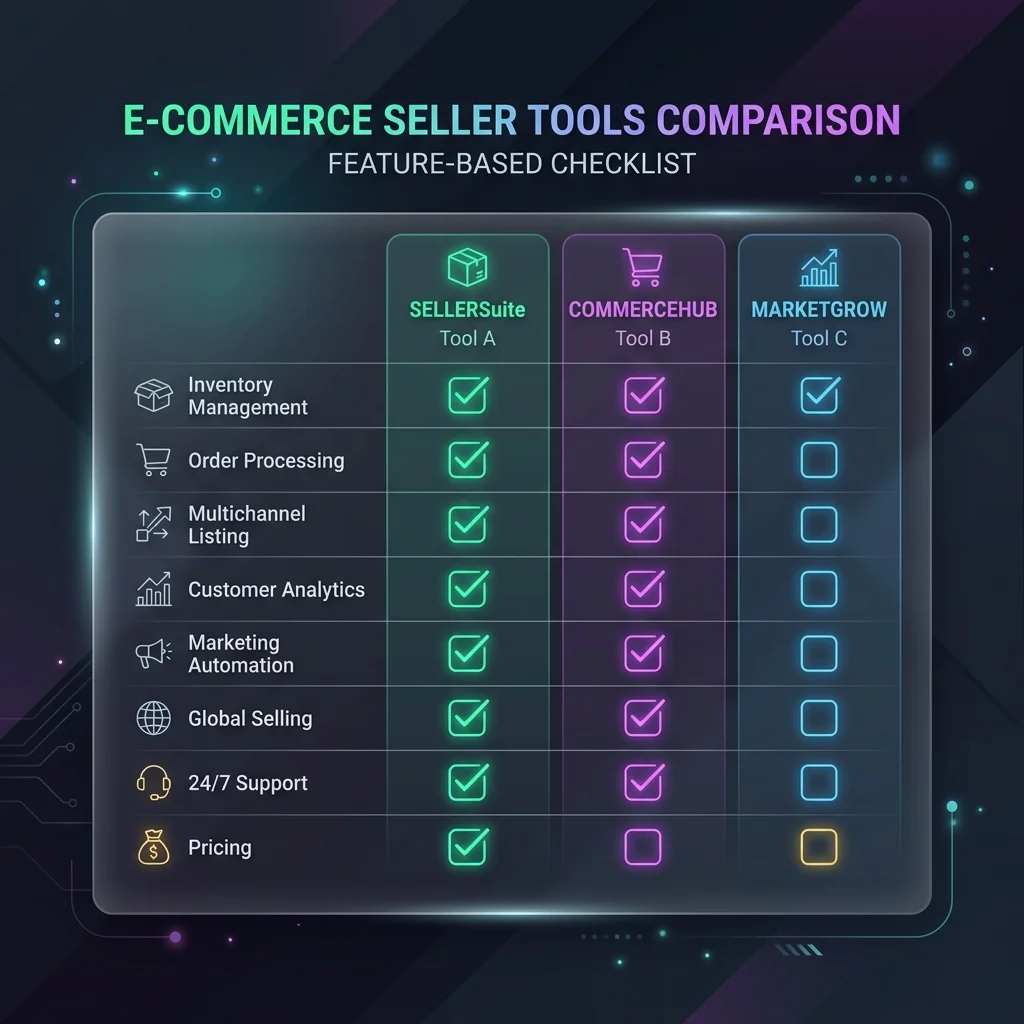
If you need an Amazon label cropper, first confirm that it handles the document from your fulfilment workflow. These examples reflect public listings checked on September 30, 2026; Seller Analytics Hub has not independently tested their processing, barcode output or data handling.
| Option | What its public listing says | What to check before using it |
|---|---|---|
| CropLabel browser tools | Its public site lists an Amazon label crop tool alongside Meesho and Flipkart tools, A4 or 4×6 output, invoice removal, and free access without registration. The provider says PDFs stay in the browser and are not uploaded. | These are provider statements from its public site, not an independent processing or security test. Open the Amazon-specific workflow, review its current privacy terms, confirm the source document is supported, and test one printed label. |
| EasyCrop web tool | The site describes a free, no-signup PDF workflow for Amazon, Flipkart and Meesho. Its upload form lists a 20 MB PDF limit and Amazon options for product text, quantity badges and invoice handling. | The page describes uploading files but does not establish local-only processing. Read its privacy policy, confirm whether it supports your specific Amazon document, and test one label before a batch. |
| SellerOS label cropper | Its public tool page lists Amazon Easy Ship and FBA support, 4×6 or A4 output, invoice removal, and SKU/ASIN text options. The site describes batch and mixed-marketplace processing. | These are provider-described features, not a test of Amazon-file compatibility or barcode output. Review the current privacy policy before uploading order PDFs, then check invoice handling and one printed sample. |
| Quick Label Crop Android app | Google Play describes cropping shipping labels for Amazon, Flipkart and Meesho. Its update notes say the Amazon crop tool and SKU stamping were added. The listing shows 500+ downloads, contains ads, and presents developer-provided data-safety declarations. | The listing does not specify supported Amazon document layouts, output size or barcode scan results. Test SKU placement and scan a printed copy of your own parcel label before using it for dispatch. |
Do not use a parcel-label cropper to alter FBA product or carton labels. Those have separate placement and barcode requirements; follow the instructions for the specific FBA shipment.
Which Amazon label are you printing?
For a seller-fulfilled order, start from the relevant order in Seller Central. Amazon's self-ship guide explains that packing slips and shipping labels serve different purposes. For FBA stock, use the labels generated for that shipment and follow its current preparation instructions. Do not substitute a parcel label for a product or carton label.
| Your workflow | Document to check | Before cropping |
|---|---|---|
| Easy Ship | The shipping label made available after scheduling pickup in Seller Central. | Match it to the packed order and check whether its current layout already fits your print media. |
| Self Ship | The shipping document from your chosen carrier or the Buy Shipping workflow, plus any separate order paperwork. | Check the carrier's required fields and keep the packing slip distinct from the parcel label. |
| FBA inbound | Unit or product barcode labels and the box labels for the shipment to Amazon. | Follow that shipment's placement and barcode instructions; this customer-parcel crop checklist is not a substitute. |
Menu labels and available print formats can vary by fulfilment method and account, so inspect the document generated for your actual order or shipment. Amazon's India invoicing FAQ says invoices for Easy Ship and Self Ship orders can be printed from Manage Your Orders, and that bulk scheduling output may contain both labels and invoices. Check the current Seller Central workflow for your own account before separating or discarding a page.
For FBA inventory, do not use a customer-parcel crop checklist to alter unit labels. Amazon India's FBA FAQ says unit labels carry an Amazon product identifier, barcode, item description and condition, and that every unit must be labelled. Its India shipment-preparation manual separately covers carton labels. Use the labels and placement instructions generated for the specific FBA shipment.
How to crop an Amazon shipping label PDF
- Save the original file. Keep an untouched copy tied to the order or shipment.
- Inspect the whole page. Find the label boundary and check whether another document is present on the page.
- Crop conservatively. Preserve addresses, barcodes, tracking text and any marks required for the shipment. Leave breathing room around machine-readable codes.
- Set the printer media. Use the actual roll or sheet size available in your printer settings. Preview the PDF before printing; do not force an unfamiliar document into a preset size.
- Print and check one copy. Compare the order or shipment identifier, inspect all edges, and scan the code where your process allows.
What if the barcode looks blurred?
Return to the original PDF and print directly from it. Screenshots, image exports and repeated resizing can soften the bars and small text. Check the printer's media size, print density and scaling in the preview. A label that is technically on the page but cannot be scanned is not ready for dispatch.
Keep packing slips and FBA labels separate
A packing slip helps identify package contents; it is not automatically the same document as a courier shipping label. FBA carton and product labels have their own placement rules. If a PDF contains several kinds of pages, separate them by purpose and follow the instructions attached to that Amazon workflow. Amazon's India shipment preparation manual is a starting point for FBA carton label placement.
Before printing a full batch
Confirm the first printed label against its order, then check a later page from the same batch. Recheck whenever the source PDF layout, label roll or printer changes. If you also dispatch Meesho orders, use the separate Meesho crop workflow for that marketplace.
Amazon label crop questions
How do I crop an Amazon shipping label PDF?
Open the original PDF, identify the parcel label for the correct fulfilment method, and crop only the surrounding blank area or unrelated page section. Keep the complete address, tracking or shipment code, and required marks. Preview and print one sample before preparing the rest of the orders.
Can I crop an FBA product label the same way as a parcel label?
No. FBA unit labels and carton labels identify inventory moving to an Amazon fulfilment centre; a customer parcel label identifies a shipment to a buyer. Follow the instructions in that FBA shipment rather than applying a customer-label crop to it.
Can Seller Analytics Hub crop Amazon labels?
The Hub's current crop tool is built for Meesho PDFs and has not been validated for Amazon documents. For Amazon, use the workflow available in your account or a PDF editor, then check the output against the shipment before dispatch.
Check the current marketplace instructions.
Use the official seller source alongside this printing checklist.