Calculator Label Tool Blog Features Pricing Login Start Free →
HomeBlogHow to Generate a Shipping Label on Meesho Seller Account
Label Printing

How to Generate a Shipping Label on Meesho Seller Account

May 18, 2026 12 min read Label Printing
How to Generate a Shipping Label on Meesho Seller Account
📋 Table of Contents

Why Fast Label Generation Matters in 2026

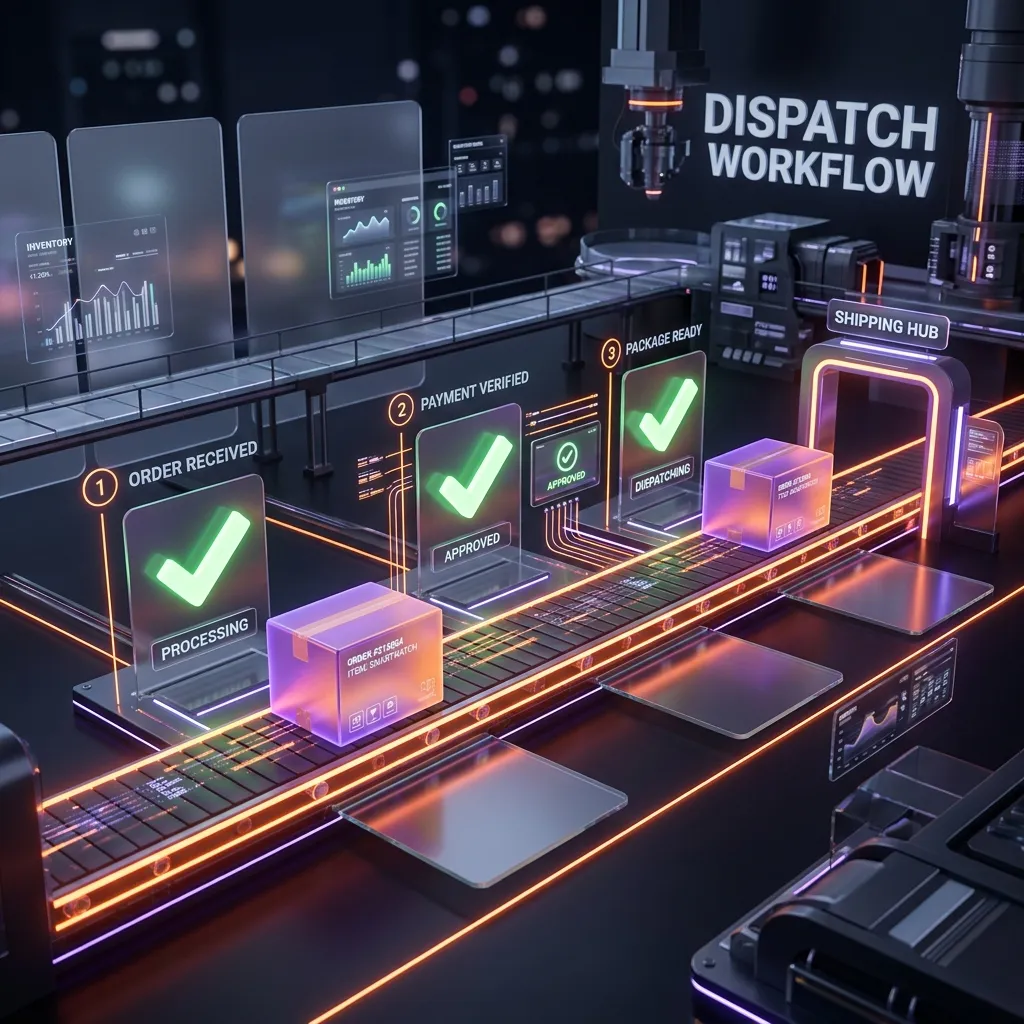
If you are a new Meesho seller, one of the first operational challenges you will face is understanding the order dispatch workflow. The most critical step in this workflow is generating and downloading your shipping labels from the Meesho Supplier Panel.

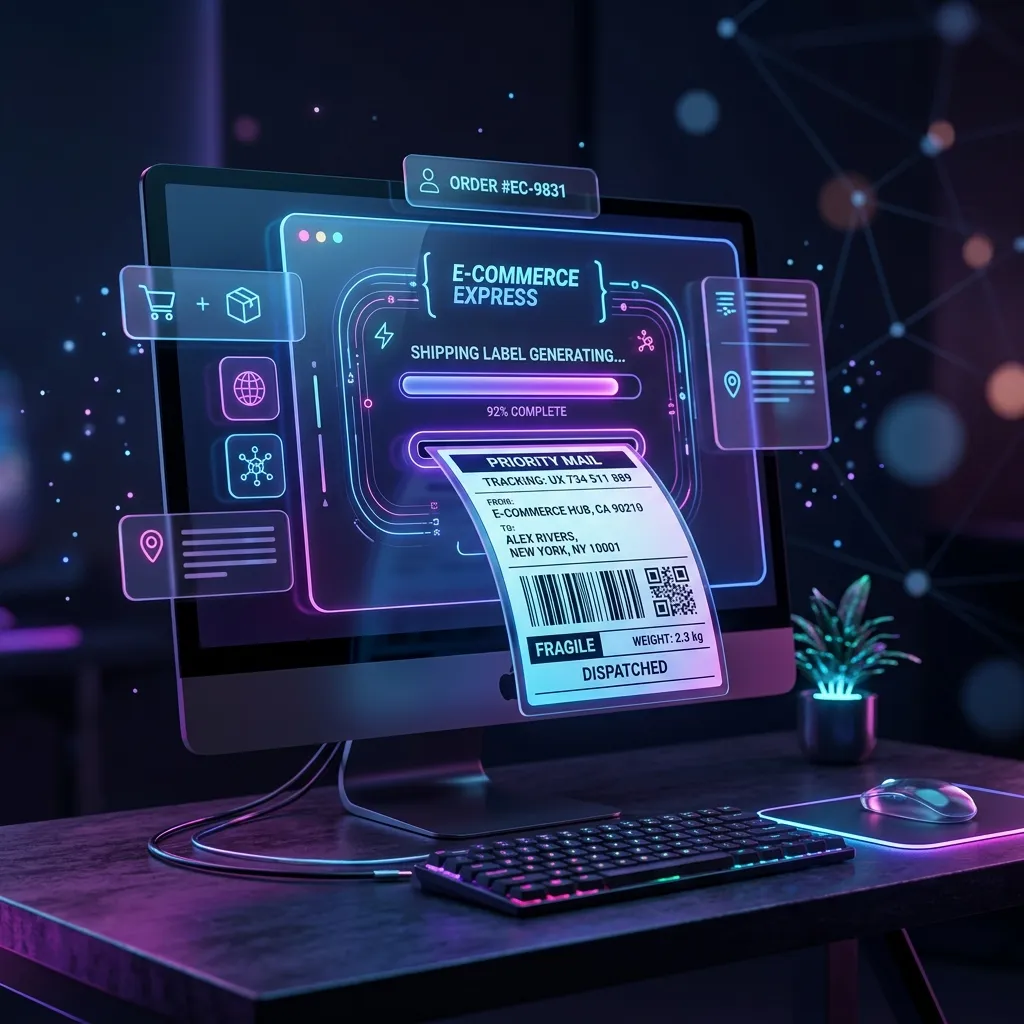
Downloading your Meesho shipping label is not just about getting a piece of paper to stick on a box. On Meesho, clicking the "Download Label" button actually triggers a notification to the logistics partner (like Delhivery, Ecom Express, Xpressbees, or Shadowfax) that your package is ready for pickup. Delaying this step can push your pickup to the next day, leading to late dispatch penalties and unhappy customers.

In this guide, you will learn the exact process to generate, download, crop, and print Meesho shipping labels correctly — whether you are processing 5 orders or 500 orders a day.

Why This Matters for Your Business

Sellers who dispatch within 24 hours of receiving an order see 15-20% fewer RTOs compared to those who delay. Faster dispatch means the customer receives the product while they are still excited about the purchase.

Prerequisites: Before You Download

Before you can generate a shipping label on Meesho, you must have an order in the correct state. Here is the order lifecycle:

Order StatusWhat It MeansAction Required
PendingCustomer placed the order; awaiting your confirmationClick "Accept Order"
Ready to ShipYou accepted; label can now be generatedClick "Download Label"
ShippedCourier has scanned and picked up the packageNo action; tracking updates automatically
DeliveredCustomer received the productPayment settles in 7-10 days
"Breaching Soon" Orders

Always check the "Breaching Soon" filter in the Pending tab. These are orders nearing their expected dispatch date. If not accepted in time, they may be auto-cancelled, hurting your account health score.

Step-by-Step: How to Generate Meesho Shipping Labels

1

Log in to the Meesho Supplier Panel

Open supplier.meesho.com in your browser and log in using your registered mobile number or email ID. The desktop version is strongly recommended for bulk processing.

2

Navigate to the Orders Section

On the left-hand navigation menu, click on Orders. You will see tabs for Pending, Ready to Ship, Shipped, and Cancelled.

3

Accept Pending Orders

Go to the Pending tab. Select each new order and click "Accept Order." This confirms to Meesho that you have the inventory. Once accepted, the order moves to the "Ready to Ship" tab.

4

Go to the "Ready to Ship" Tab

Click on the Ready to Ship tab. This lists all accepted orders waiting to be packed and shipped. Only orders in this tab can have shipping labels generated.

5

Select Orders and Click "Download Label"

Select individual orders using checkboxes, or use the "Select All" checkbox at the top. Click the "Download Label" (or "Download Invoice & Label") button. A single PDF with all your selected shipping labels will be downloaded.

6

Crop and Print the Labels

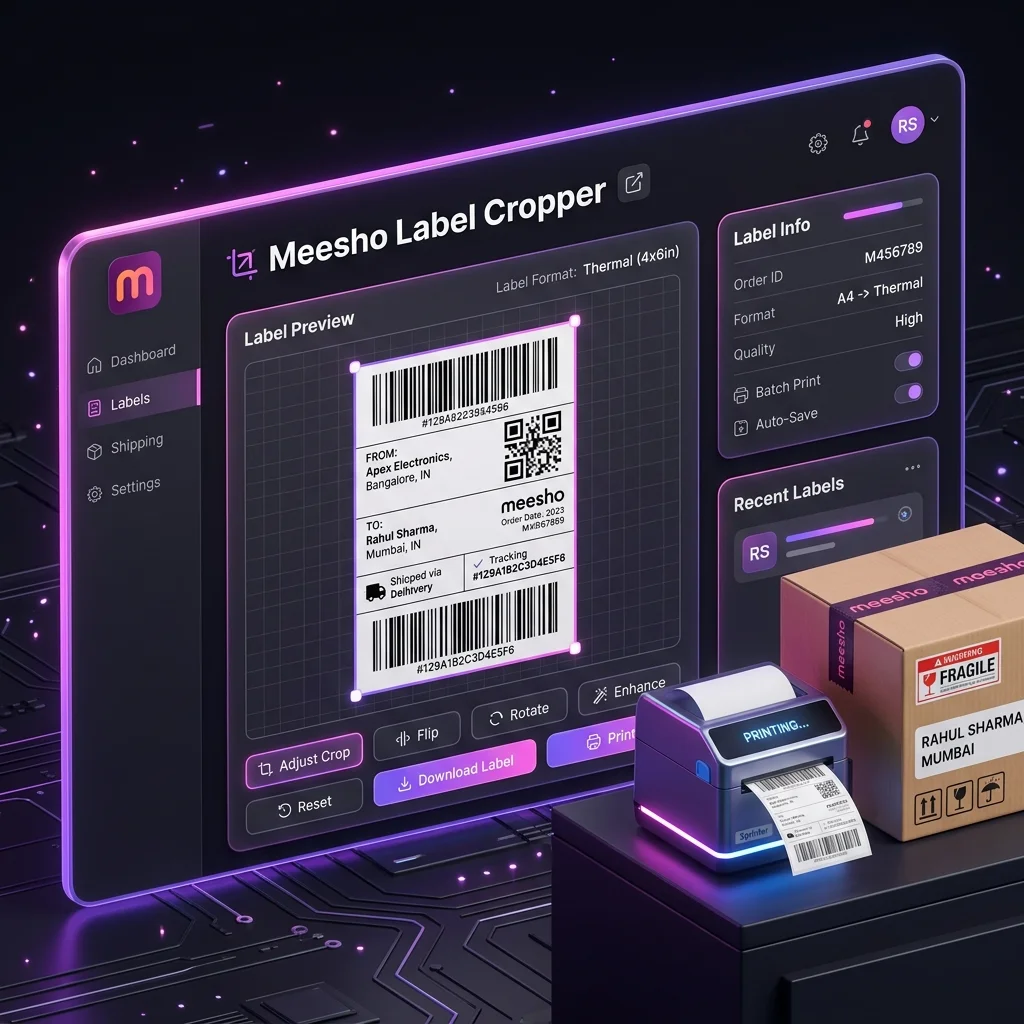
The downloaded PDF is in A4 format with both shipping label and tax invoice. Use our Free Meesho Label Crop Tool to automatically separate the label from the invoice and format it for your printer (4x6 thermal or A4).

Bulk Label Download for High-Volume Sellers

If you are processing 50+ orders per day, downloading labels one by one is not practical. Here is how to optimize:

The 11 AM Rule for Same-Day Pickup

Meesho operates on a specific timeline for dispatch routing. If you want same-day pickup, you must adhere to the 11 AM Rule:

Label Download TimePickup ScheduleImpact
Before 11:00 AMSame day (typically 2-6 PM)Fastest delivery; happy customers; low RTO
After 11:00 AMNext working day24-hour delay; increased customer cancellation risk

For sellers in the Next Day Dispatch (NDD) program, adhering to this timeline is critical. NDD sellers get a special badge that boosts visibility and conversion. Read more in our Complete Meesho Dispatch Workflow Guide.

What to Do After Downloading: Cropping & Printing

The downloaded Meesho shipping label is an A4-sized PDF. The top half is the shipping label (barcode, address, AWB number), the bottom half is the tax invoice.

If you use a 4x6 thermal printer, sending this A4 PDF directly will shrink the barcode, making it unscannable. Logistics scanners will reject it.

Common Mistake: Printing A4 directly to Thermal Printer

Printing the raw Meesho PDF on a 4x6 thermal printer with "Fit to Page" enabled shrinks the barcode to 1/4th its size — the #1 cause of preventable RTOs among new sellers.

Solution: Use a Label Cropper Tool

Run your PDF through our Free Label Crop Tool. It removes the invoice, resizes to 4x6 at 100% scale, and groups labels by SKU or courier. Learn more: How to Crop Meesho Labels for Thermal Printers.

If you use a regular A4 printer, save paper by printing 4 labels on a single A4 sheet.

Generating Labels via the Meesho Seller App

You can also generate labels from the Meesho Seller mobile app if you are away from your computer:

  1. Open the Meesho Seller App on your smartphone.
  2. Go to Orders → Ready to Ship.
  3. Select the orders and tap "Download Label."
  4. The PDF will be saved to your phone's Downloads folder.
  5. Share it via Bluetooth or Wi-Fi to your printer, or use our web-based label cropper (works on mobile browsers too).
Mobile Limitation

The mobile app may not support selecting more than 20 orders at a time. For high-volume sellers, always use the desktop Supplier Panel.

Troubleshooting: Label Not Generating

Sometimes clicking "Download Label" results in an error or infinite loading. Common causes and fixes:

Server Overload (Peak Hours)

Between 10 AM and 12 PM, thousands of sellers download labels simultaneously. Wait 15-30 minutes and retry. Off-peak hours (after 1 PM) are much faster.

Bulk Selection Timeout

Selecting more than 50-100 orders at once may cause the PDF generator to time out. Download in smaller batches of 20-30 orders.

Browser Cache or Extension Issues

Clear your browser cache, disable ad blockers, or use an Incognito/Private window. Some extensions interfere with PDF downloads.

Frequently Asked Questions

Usually caused by server overload during peak hours (10 AM - 12 PM). Wait 15-30 minutes and retry. Download in groups of 20-30 orders instead of selecting all at once. Also try clearing your browser cache or using Incognito mode.

For most items (clothing, accessories), you only need the shipping label. The invoice is stored digitally. Use a label cropper to remove the invoice. Read our guide on separating labels from invoices.

Yes, you can self-cancel from the panel, but frequent cancellations hurt your seller metrics, catalog visibility, and NDD eligibility.

Labels downloaded before 11 AM trigger same-day pickup with logistics partners. After 11 AM, pickup is scheduled for the next working day. Critical for NDD sellers.

Yes, via Orders → Ready to Ship. However, the desktop panel is recommended for bulk downloads as it supports larger batch selections and faster processing.

Non-scanning barcodes are usually caused by printing A4 PDFs on thermal printers without cropping first. Use our label crop tool to resize to 4x6 at 100% scale. Ensure printer darkness is 12-14 and DPI is 300. See our label mistakes guide.

Related Guides

How to Crop Meesho Labels for Thermal Printers
Complete Meesho Dispatch & Packing Workflow
Top 10 Label Mistakes That Cause RTOs
How to Print 4 Labels on 1 A4 Sheet

📊 Calculate Your Real Meesho Profit

Use our free Meesho profit calculator to find your actual margin after all fees, shipping, RTO losses, and taxes.

Try Free Calculator
Share
MA
Seller Analytics Hub Team
We build tools that help Indian e-commerce sellers understand their real profitability. Our team combines data analytics expertise with deep knowledge of marketplace economics.
Try Free Label Tool