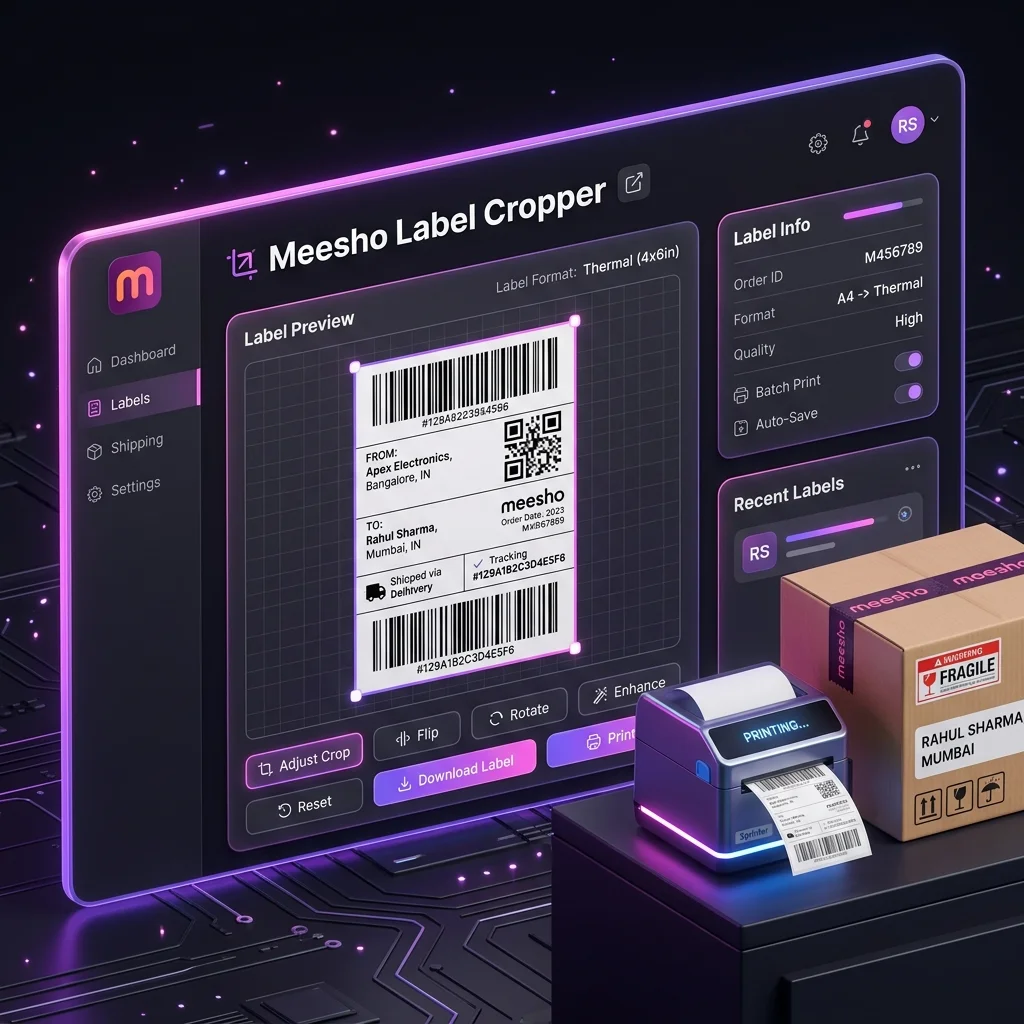
Choosing between the Meesho Label Cropper Chrome extension and the online tool comes down to how you start a batch. Both lead to the same Seller Analytics Hub crop, sort and download workspace. The extension gives you a toolbar drop zone and hands selected PDFs to the tool; the web version lets you select PDFs directly on the page without installing anything.
If you process labels regularly on one computer, start with the extension listing and setup guide. For a one-time job or a shared computer, open the web cropper directly.
Quick answer: same cropper, different way to add files
The extension is a convenience layer for collecting and handing off PDFs. It does not create a separate paid product or a separate crop engine. The online label tool is the place where you review results and download the processed PDF, whether you started from the extension or selected files directly on the site.
Meesho Label Cropper extension vs online tool
| Workflow question | Chrome extension | Web tool |
|---|---|---|
| Install needed? | Yes, install from Chrome Web Store. | No. Open the tool URL in a browser. |
| How do files get selected? | Use the toolbar popup or full-window drop zone to choose or drag PDFs. | Choose or drop PDFs in the page upload area. |
| Where are crop and sorting options applied? | Choose options in the extension; the Hub tool applies them to the queued batch. | Set options in the Hub tool after selecting files. |
| Where do I check and download? | The Hub page shows batch totals and a download button; inspect the downloaded PDF in your viewer. | The same Hub page shows batch totals and a download button. |
| Best fit | Repeated label batches on a computer where extensions are allowed. | Occasional use, shared computers or users who do not want to install an add-on. |
Choose the Chrome extension for repeat batches
The extension is useful when your dispatch routine regularly starts with multiple PDFs. It keeps a file drop area and the common options near the browser toolbar, then opens the Hub tool with the selected batch queued. The Store listing describes SKU sorting, courier grouping, quantity priority, optional order ID barcode and custom margin text.
That convenience may matter if you prepare labels every day or combine PDFs for more than one seller account. It does not perform order acceptance or courier handover for you; those steps remain in your seller workflow. See how to sort Meesho labels by SKU and courier for the packing sequence.
Open the official Chrome Web Store listing to review the publisher, current version, privacy disclosures and install prompt.
Choose the web tool when you want no installation
The web tool is the shorter path for a one-off crop, a shared packing desk or a computer where your organization blocks extensions. Open the page, select the downloaded PDFs and configure the batch there. The browser tool also stays available if you have not installed the extension yet.
Use the Meesho PDF crop and 4×6 print guide to check the output and print dialog. For printer setup, read the thermal printer calibration guide.
PDF privacy: understand the browser handoff
The Chrome Web Store listing says PDF processing is local and discloses that the extension does not collect data. In the extension workflow, files move from extension-local storage to the Seller Analytics Hub page through a browser handoff; the cropper processes them in the browser and offers the download there. This handoff is not the same as uploading the PDF to a remote processing service. After processing, the Hub sends a usage summary that may include seller name, order IDs, SKUs, counts and selected options. The PDF contents are not included in that summary; see the extension privacy notice for details.
Before installing, review the current permissions and privacy disclosures on the Chrome Web Store listing. If you prefer not to install, use the Meesho Label Crop Tool directly.
Frequently asked questions
Do I need the Chrome extension to crop Meesho labels?
No. You can upload or select PDFs directly in the Seller Analytics Hub web cropper. The extension is optional and provides a toolbar workflow for selecting a batch and opening the tool with those files queued.
Does the Chrome extension process PDFs on a server?
The Chrome Web Store listing says the extension processes files locally and does not collect data. Its handoff sends selected files from extension-local storage to the Hub page in your browser, where the cropper processes them locally. The Hub sends a separate batch summary for usage analytics, but not the PDF contents.
Which option is better for a shared packing computer?
Use the web tool if you do not want to install an extension on that computer. Use the extension on a computer where you regularly prepare label batches and are allowed to install browser add-ons.
Can I use the label cropper on mobile?
The web tool may be opened in a mobile browser, subject to that browser’s file-selection and PDF capabilities. Google Chrome extensions cannot be installed on mobile devices, according to Chrome Help.
Install the Meesho Label Cropper and Sorter extension for recurring batches, or open the free Meesho Label Crop Tool to process PDFs without installing an extension.
Try the workflow with your own data.
Open the matching Seller Analytics Hub tool and review the result before using it for dispatch or reporting.