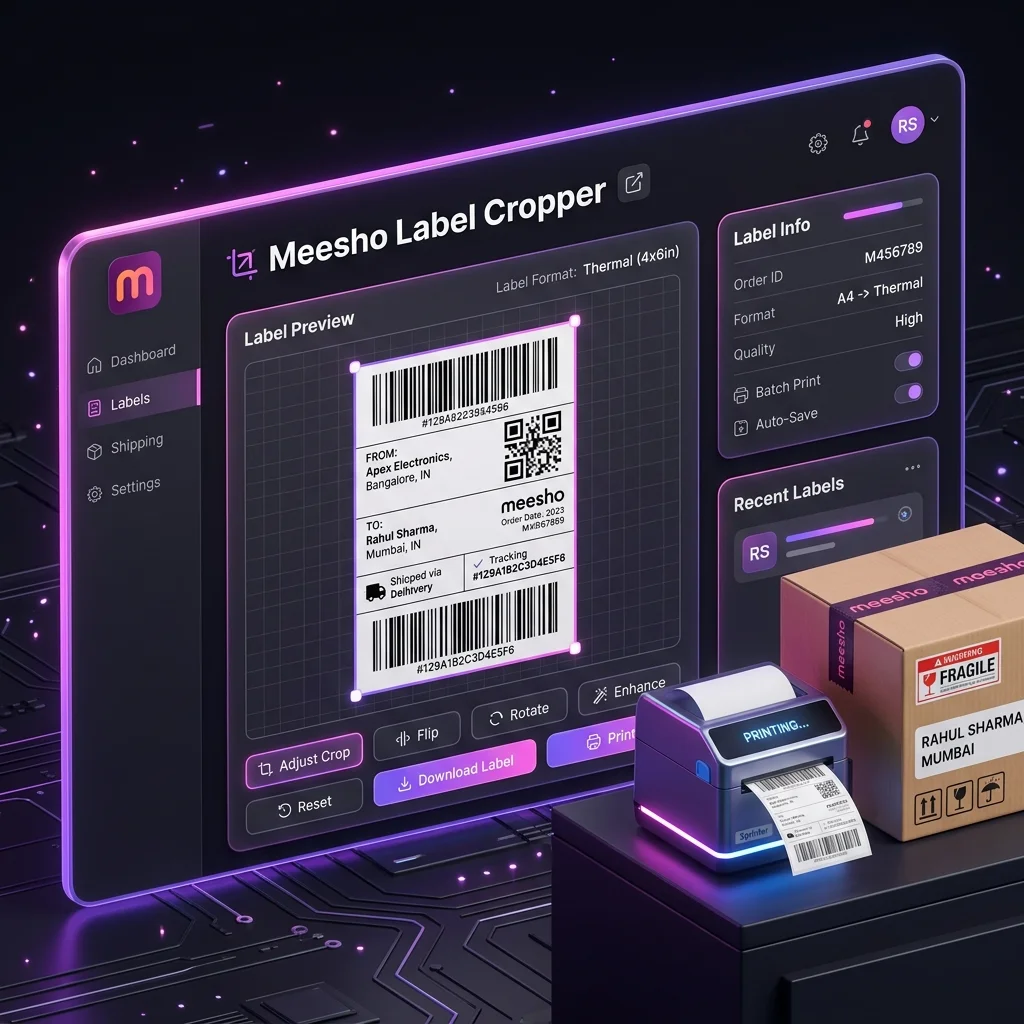
The Meesho Label Cropper and Sorter Chrome extension gives sellers a quick way to hand a batch of downloaded shipping-label PDFs to the free Seller Analytics Hub cropper. Install it from the Chrome Web Store, add the PDFs you want to prepare, choose your sorting options and review the finished batch in the browser before downloading it.
The extension is optional: you can use the Meesho label cropper web tool without installing anything. This guide explains the difference, the Chrome installation flow and the steps from a downloaded supplier PDF to a print-ready file.
What the Meesho Label Cropper extension does
The extension is a batch handoff and options interface. It collects the PDF files you select and opens the Seller Analytics Hub label tool with that batch queued. The tool handles cropping, sorting, merging and download in your browser; inspect the finished PDF in your viewer.
Available options include cropping the invoice strip for thermal labels or keeping it, grouping labels by SKU or courier, setting quantity priority, adding an order ID barcode and placing a custom note on the label margin. The exact options are shown in the extension and applied when the Hub tool processes the batch.
Install from Chrome Web Store → select your Meesho PDFs → set sorting → open the Hub tool → review and download. The extension does not replace the tool page; it opens the tool with the files already queued.
Install Meesho Label Cropper from Chrome Web Store
- Open the official Meesho Label Cropper and Sorter listing in desktop Chrome.
- Select Add to Chrome.
- Review the browser’s extension prompt and select Add extension if you want to proceed.
- Open the Extensions menu beside the address bar. You can pin the extension there for quicker access.
This follows Google’s standard desktop install flow: open an item in the Chrome Web Store, select Add to Chrome and confirm the browser prompt. Google notes that work or school administrators can restrict installs, and extensions cannot be installed on mobile devices. See Google Chrome Help: Install and manage extensions.
Process a Meesho label batch
- Download labels from the Supplier Panel. Save the PDF files for the orders you are preparing. Keep the original files until you have checked the generated output.
- Open the extension. Select its toolbar icon, then choose PDFs or drag the files into the drop area. You can choose more than one PDF for a combined batch.
- Set the batch options. Choose invoice handling, SKU or courier grouping, quantity priority and any optional stamp or order ID barcode.
- Open the Hub cropper. The tool page opens with your selected files queued. It processes them in the browser, displays the result summary and lets you download the merged PDF.
- Check a sample page before printing the full batch. Open the downloaded PDF and confirm the label orientation, barcode and invoice choice; then check printer paper size in print preview.
For the crop and print settings, see the detailed Meesho PDF crop and 4×6 printing guide. If you need device-specific printer setup, use the 4×6 thermal printer setup guide.
Choose sorting and print options for your packing workflow
| Option | Use it when | Check before dispatch |
|---|---|---|
| Crop invoice strip | You are printing the shipping label on a 4×6 thermal roll. | Confirm whether your packing process requires an invoice copy inside the parcel. |
| Keep invoice | You need the invoice included in the output PDF or are printing on A4. | Review page layout and paper size before printing the batch. |
| Sort by SKU | You pick products from shelves or bins before packing. | Check that the SKU text in the source label is readable and correct. |
| Sort by courier | You prepare separate handover piles for delivery partners. | Check each pile against the courier shown on the label. |
| Quantity priority | You want single-item or multi-item orders earlier in the batch. | Use the downloaded PDF and SKU summary to confirm the pick sequence. |
Sorting changes the order of labels in the output; it does not replace the Supplier Panel’s order acceptance, dispatch confirmation or courier handover steps. For a complete operational walkthrough on courier and SKU separation, read our Meesho SKU and courier sorting guide or open the Meesho label tool.
Privacy and file handling
The Chrome Web Store listing states that the extension does not collect data and that PDF processing happens locally in the browser. The extension queues files in browser-local storage and transfers the batch to the Hub page through a browser handoff; the Hub cropper then processes the PDF locally and removes the extension-side copy after the handoff completes. After processing, the Hub sends usage analytics that can contain seller name, order IDs, SKUs, file and label counts, and selected options; the PDF contents are not included.
Use the Chrome Web Store listing to review the developer’s current privacy disclosures and requested access before installing. The extension requests storage, tabs and alarms, and includes a small launcher on supplier.meesho.com plus a handoff bridge on Seller Analytics Hub. It does not request Meesho login cookies.
If the extension does not open the queued files
- Check the browser: use desktop Chrome or another supported Chromium browser, not an incognito or guest window.
- Allow the Hub page to load: the handoff needs the Seller Analytics Hub tab to remain open until the files appear in the tool.
- Try a smaller batch: if your browser has limited memory, process fewer large PDFs at a time.
- Use the direct tool: if the handoff fails, open the web cropper and select the same PDFs there.
- Keep the originals: verify the downloaded PDF before printing or deleting source files.
Frequently asked questions
How do I install the Meesho Label Cropper and Sorter extension?
Open its Chrome Web Store listing on a desktop browser, select Add to Chrome, review the browser prompt and confirm. Then open the extension from the toolbar to select or drop your Meesho label PDFs.
Does the Meesho label extension crop the PDF inside the popup?
The extension collects PDFs and hands them to the Seller Analytics Hub label tool in the same browser. The web tool performs the crop, sorting and PDF assembly, then shows batch totals and a download button. Inspect the downloaded PDF in your viewer.
Can I use the Meesho label cropper without installing an extension?
Yes. Open the Seller Analytics Hub Meesho label tool and select or drop your PDFs directly into the page. The Chrome extension is optional and makes it easier to hand a batch to the tool.
Can I install Chrome extensions on a phone?
Google Chrome extensions are installed on desktop Chrome. Google’s help documentation says extensions cannot be installed on mobile devices. You can still open the Seller Analytics Hub web label tool in a browser that supports its file controls.
Install the free Meesho Label Cropper and Sorter for repeated batches, or open the Meesho label web tool for a one-off crop without installing an extension.
Check the current marketplace instructions.
Use the official seller source alongside this printing checklist.