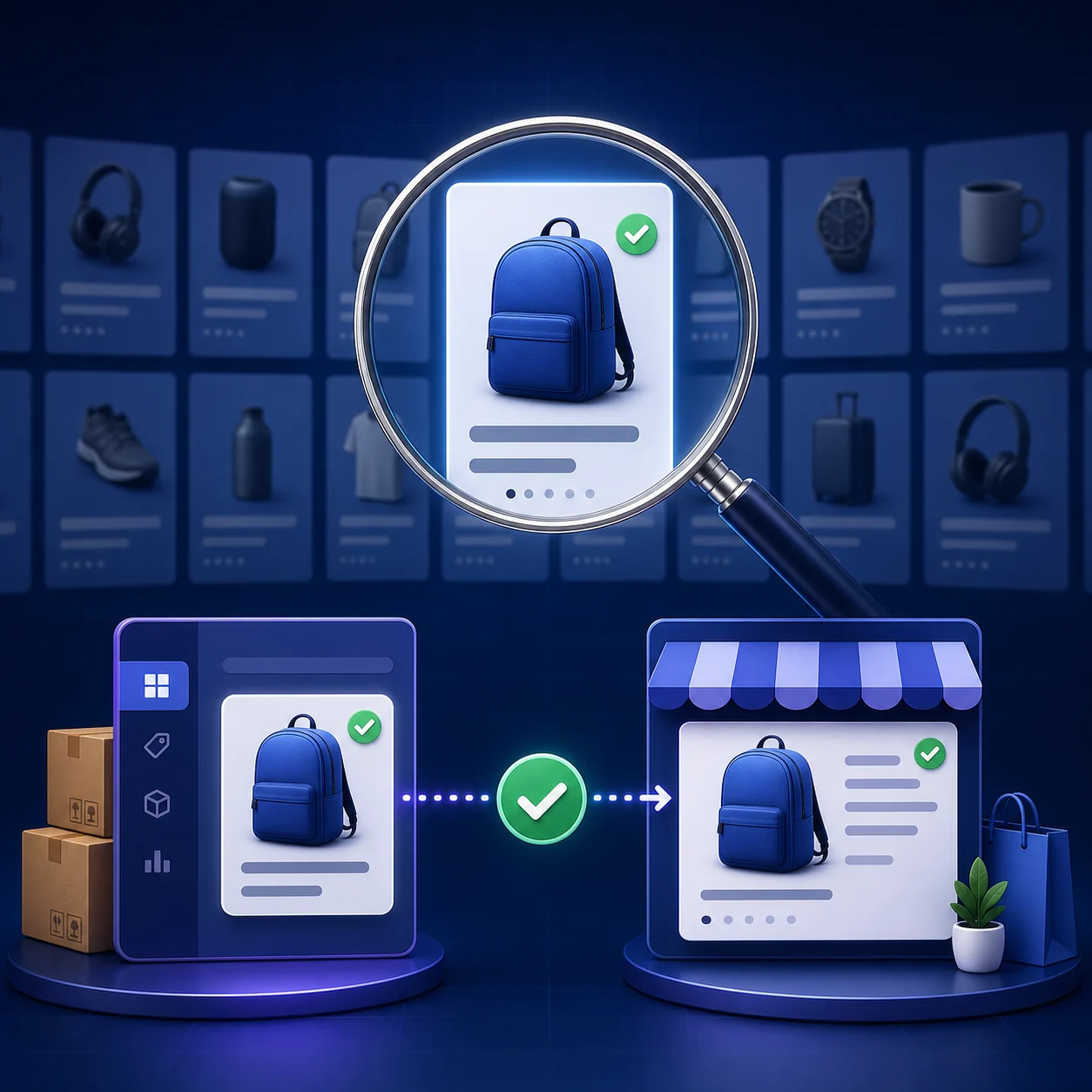
To find a Meesho product ID, open the relevant product details in your Supplier Panel and copy the field labelled Product ID or PID. Keep a Catalog ID separately if the panel or support request asks for one; these labels can refer to different records. Do not substitute a seller SKU, style code, variation ID or sub-order number. Then verify the buyer listing against its title, images, variants, seller and pack quantity. A direct URL proves the page opens; it does not prove high search rank.
“Mera product Meesho par dikh kyu nahi raha?” sounds like one problem, but it can mean four different things:
- the catalog is not live;
- the product is live but hard to find manually;
- the product is findable only with a narrow query or filter; or
- the product page opens directly, but its search position is weak.
Diagnose those stages in order. Otherwise, a seller may rewrite titles or cut price when the real issue is inventory, approval status, a variant mismatch, or simply searching with the wrong terms.
Method 1: Find the Listing Manually and Verify the Match
Step 1: capture a seller-side fingerprint
Open the relevant product details in your Meesho Supplier Panel and record a small fingerprint. The interface and field names can change, so keep the exact labels shown on your screen. A Product ID/PID and a Catalog ID may be separate references; copy the one the order export or support request asks for rather than treating “product” and “catalog” as synonyms.
Meesho Product ID, Catalog ID, Variation ID, SKU and Style Code
These identifiers can appear in the same seller workflow, but they point to different levels or records. Keep the displayed field name with the value, especially when sharing an ID with support.
| Identifier | What it refers to | How to use it |
|---|---|---|
| Product ID / PID | A product-level Meesho reference. | Copy it when a product lookup asks for Product ID or PID; do not assume it is the Catalog ID. |
| Catalog ID | A catalog-level reference that may identify the uploaded catalog record. | Keep it separate from Product ID when both appear in a panel, export, or support workflow. |
| Variation ID | A Meesho reference for a specific option, such as a size or colour, when provided. | Use it to distinguish variants; it is not the product-level ID or your own SKU. |
| Seller SKU | An internal code the seller assigns to identify stock or a product variant. | Use it for your own inventory and packing workflow. Do not assume buyer search recognizes it. |
| Style code | A product or design code used in a seller's catalog workflow; its meaning can depend on the account or source. | Record it as a separate value and confirm what system issued it before treating it as a product ID. |
| Sub-order number | An order-level reference for a buyer transaction. | Use it to trace an order, not to identify the public catalog listing. |
| Exact title | Provides searchable product type and attributes. | The buyer-facing title can be normalized or reordered. |
| Primary image | Fast visual confirmation. | Several sellers may use the same supplier image. |
| Seller/supplier name | Separates visually identical listings. | Storefront display name may differ from a legal or internal name. |
| Price and shipping view | Useful secondary check at the same date and location. | Offers, location, and delivery context can change displayed value. |
| Variants and pack quantity | Confirms the exact catalog rather than a lookalike. | A similar listing may have different sizes, colours, or count. |
Step 2: search from distinctive to broad
- Search the most distinctive product-type and attribute combination from the title.
- Add a material, pattern, use case, colour family, size, or pack quantity only when it is genuinely part of the product.
- Use the relevant category and price filters.
- Open plausible results in separate tabs and compare the complete fingerprint.
- If nothing matches, broaden one variable at a time instead of changing the entire query.
Example: searching “kurti” produces a huge, personalized result set. “Women rayon straight printed kurta calf length” carries more information. The objective is not keyword stuffing; it is using the same truthful attributes that distinguish the product.
Step 3: separate existence from rank
If the direct buyer page opens but a broad search does not surface it, the product exists and the remaining question is discovery. Record the exact query, filters, device, location, login state, and date. Meesho describes its 2026 discovery systems as personalized and intent-aware, so two shoppers may not receive identical ordering. Read our Meesho PRISM guide before treating one search result as a universal rank.
Method 2: Use a Product-Finder Chrome Extension
A product-finder extension can remove the repetitive matching step by adding a buyer-page shortcut or by using seller-panel context to search the public marketplace. This is useful when a catalog team reviews many products every day.
The official Chrome Web Store listing for Find your product on Meesho by OneClickOMS advertises one-click product search, smart matching, and quick access from Meesho and the Supplier portal. A store snapshot checked for this article showed 241 users, no ratings, version 1.2.0, and an update date of June 4, 2026. Those store details are time-sensitive.
Other tools describe similar quick-view workflows. The capability is simple to explain but still needs careful QA: the extension should open the correct catalog, not merely a visually similar item.
Seven checks before installing
- Publisher: does the store listing link to the same official website?
- Permissions: which seller and buyer pages can the extension read or change?
- Purpose: are the requested permissions proportional to finding a product?
- Privacy: is matching done locally, or are catalog details sent to a server?
- Identity: does the extension display which seller account is active?
- Match proof: can you see the ID, seller, variant, or other reason for the match?
- Fallback: can you still copy a URL or verify manually if matching fails?
A button labeled “View product” can still open a stale or similar listing. For the first few uses, compare catalog ID where available, seller name, images, variants, pack quantity, and price. Build trust from repeated correct matches—not from the button label.
Why Your Meesho Product May Not Appear
1. The catalog is not in a live state
Check the current seller-side status before investigating SEO. A catalog can be pending, paused, rejected, blocked, or otherwise unavailable. Use the exact reason displayed in your Supplier Panel and resolve that workflow first.
2. Inventory is unavailable
A variant with zero stock may not behave like an available product in discovery. Verify inventory for every relevant size or colour—not only the parent catalog.
3. You are searching a different product language
The internal title may use a supplier term while shoppers use a common product name, material, occasion, or style. Improve truthful attributes and readable titles, but do not insert unrelated high-volume words.
4. The category or attributes are incomplete
A misplaced category makes the listing compete in the wrong context and can hide it from useful filters. Confirm product type, material, pattern, size, colour, pack quantity, dimensions, and compatibility against the actual item.
5. The result is personalized
Location, browsing history, login state, device, filters, and buyer intent can affect visible results. One self-search is a diagnostic snapshot, not a rank tracker.
6. Competition is deeper than expected
Your catalog can be live and correctly indexed but placed below many alternatives. Compare the search page as a buyer: primary image, delivered value, ratings, seller trust, product clarity, and availability. Then improve the weakest truthful factor rather than copying a competitor wholesale.
Buyer-View Verification Checklist
Once the page opens, review it like a buyer and like an operations manager.
- Primary image shows the actual product clearly on mobile.
- Title names the product and useful differentiators without repetition.
- Material, dimensions, pack quantity, fit, colour, and included items are accurate.
- All intended variants are available and mapped correctly.
- Seller name and catalog identity match the seller-side record.
- Price and visible shipping context still support your margin.
- Reviews do not reveal an expectation gap your content could prevent.
- There is no misleading scale, colour, accessory, or quantity impression.
- The page opens without a redirect to a different product.
- The product remains findable after a controlled recheck.
Use the Meesho profit calculator after checking buyer-visible price. A product page can look competitive and still produce a weak contribution after product cost, packaging, return exposure, ads, taxes, and payout deductions.
Research the Listing Beyond “Is It Live?”
Seller Lens adds research context to buyer-facing Meesho listings. Verify the exact catalog match first; for your own Supplier Panel operations and saved reports, review Supplier Analytics separately.
Explore Seller LensA Simple Visibility Tracking Sheet
Do not check randomly and rely on memory. Create one row per query and observation.
| Field | Example format | Why record it |
|---|---|---|
| Date and time | 2026-07-30, 18:30 IST | Search results and stock change. |
| Exact query | Product type + real attributes | Prevents comparing different searches. |
| Context | Mobile/desktop, city, signed-in/out | Captures personalization variables. |
| Filters | Category, price, rating, delivery | Explains why the result set differs. |
| Position band | Top 20, 21–50, not found | A band is more honest than false precision in a dynamic feed. |
| Direct URL works? | Yes/no | Separates existence from discovery. |
| Catalog status/stock | Live; three variants in stock | Links ranking observation to availability. |
| Change made | New size image only | Supports cause-and-effect learning. |
Frequently Asked Questions
Meesho par apna product kaise dekhe?
Supplier Panel mein product details kholkar Product ID/PID aur Catalog ID ko alag note karein, agar dono dikhte hain. SKU, style code, variation ID aur sub-order number ko inka badal na samjhein. Buyer-side Meesho search mein distinctive title words aur filters use karein, phir image ke saath seller, pack quantity aur variants bhi match karein. Sirf same photo milna exact listing ka proof nahi hai.
Why can I open the URL but not find the product in search?
The page can be live while ranking below other products or appearing only for narrower intent. Search ordering can also vary by user context. Track a fixed query and context over time before diagnosing a visibility decline.
Should I search by SKU?
Use SKU when the buyer-facing search or a trusted tool supports it, but a seller-defined SKU may not be searchable publicly. For a seller-side lookup, record the exact Product ID/PID or Catalog ID requested and keep it distinct from the SKU and variation ID.
Will changing the title make the product appear immediately?
Not necessarily. First confirm status, stock, category, and direct URL. If content needs improvement, make one accurate change and allow time for the marketplace to process it. Avoid frequent, simultaneous rewrites that make results impossible to interpret.
Conclusion
Finding your product on Meesho is a small but important control. Start with the seller record, verify the exact buyer page, then test discovery separately. A product-finder extension can save time, but the seller still owns the final match check. Once you know the page is correct, move to the questions that affect the business: can the right buyer understand it, can they discover it, and does the product remain profitable after the full order cycle?
Try the workflow with your own data.
Open the matching Seller Analytics Hub tool and review the result before using it for dispatch or reporting.

